Disclosure: This website uses affiliate links; I may earn commissions at no extra cost to you. Learn more.
You want to start a website. You choose WordPress. Then you hit a wall.
There are two versions. WordPress.com and self-hosted WordPress.
I spent the last seven years managing self-hosted sites. I also spent the last week building a new site from scratch on WordPress.com.
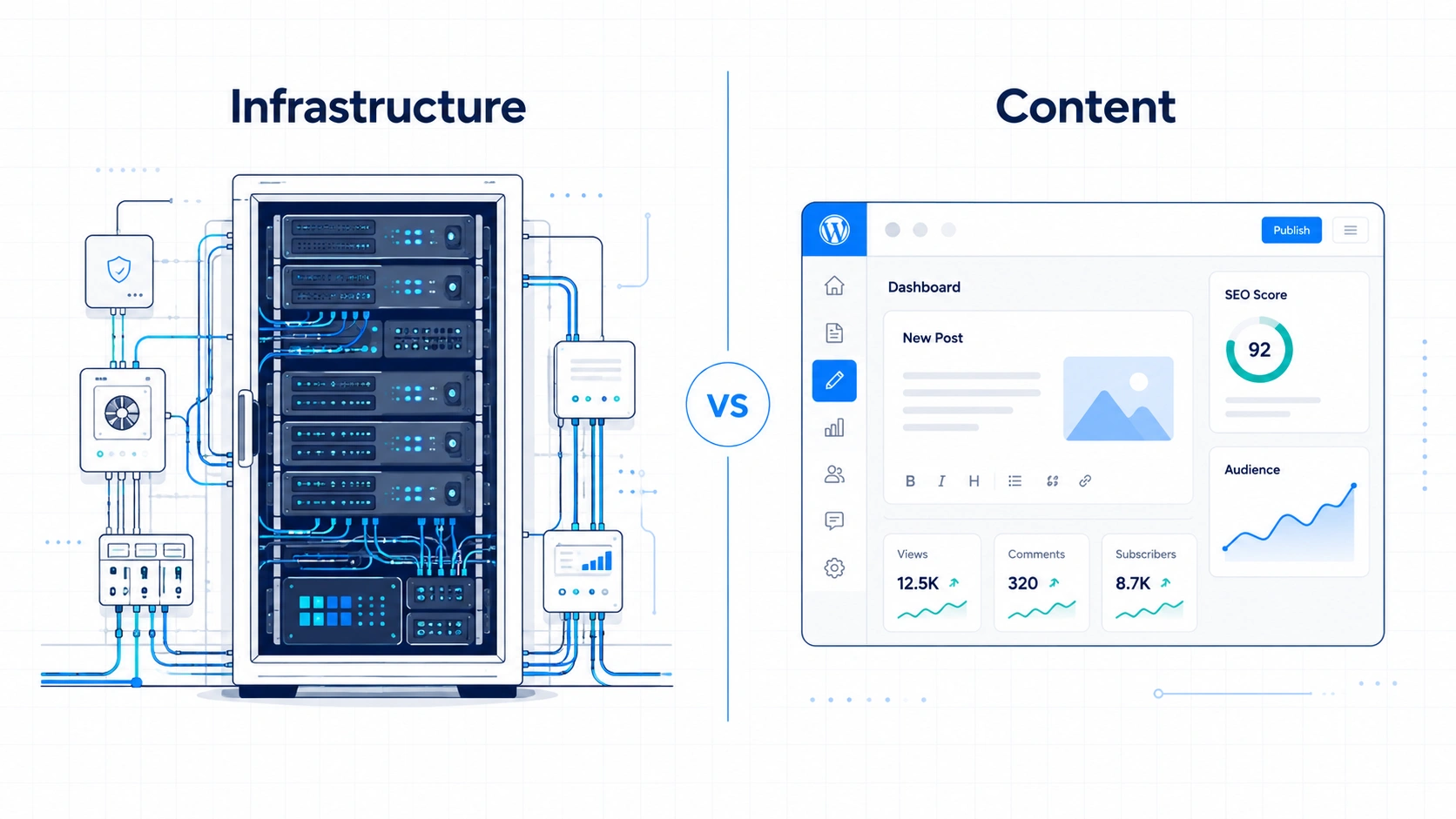
If I started completely over today, my choice would depend on question like, do I want to build a business, or do I want to manage a server?
Quick Verdict
In my experience, WordPress.com is the better fit when the priority is publishing content instead of managing infrastructure.
Self-hosted WordPress is the better fit when maximum flexibility and control are more important.
The choice comes down to how you want to spend your daily energy.
| Feature | WordPress.com (Creator Plan+) | Self-Hosted WordPress |
| Setup Time | Under 10 minutes | Around 30–60 minutes |
| Maintenance | Automatic | Manual updates |
| Security | Built-in | You configure it |
| Plugin Freedom | Full (on paid plans) | Full |
| Hidden Costs | None | Backups, security plugins, staging |
What Most People Get Wrong About This Debate
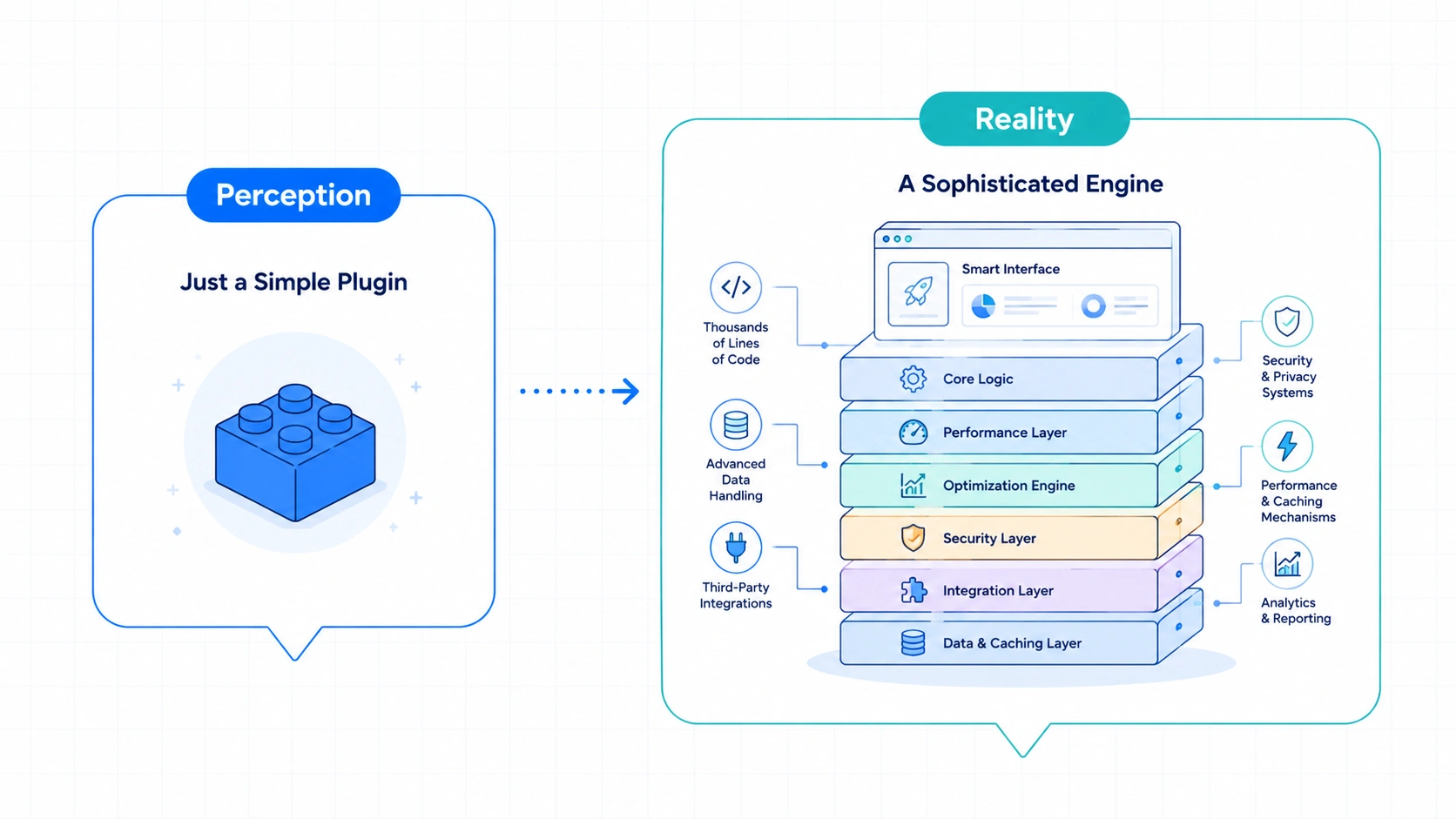
Most comparison articles give you outdated facts. They tell you that WordPress.com is a limited blogging toy and self-hosted WordPress is the only real tool.
That advice is years out of date.
In my experience, higher-tier plans felt far more capable than I expected. I could use my own themes and plugins. The gap between WordPress.com and self-hosted WordPress is much smaller today than many people assume.
The real difference is not features. The real difference is responsibility.
Owning your website hosting means owning every single future glitch. Freedom has a steep maintenance cost. Convenience has a slight flexibility cost.
My Experience Using Both Platforms
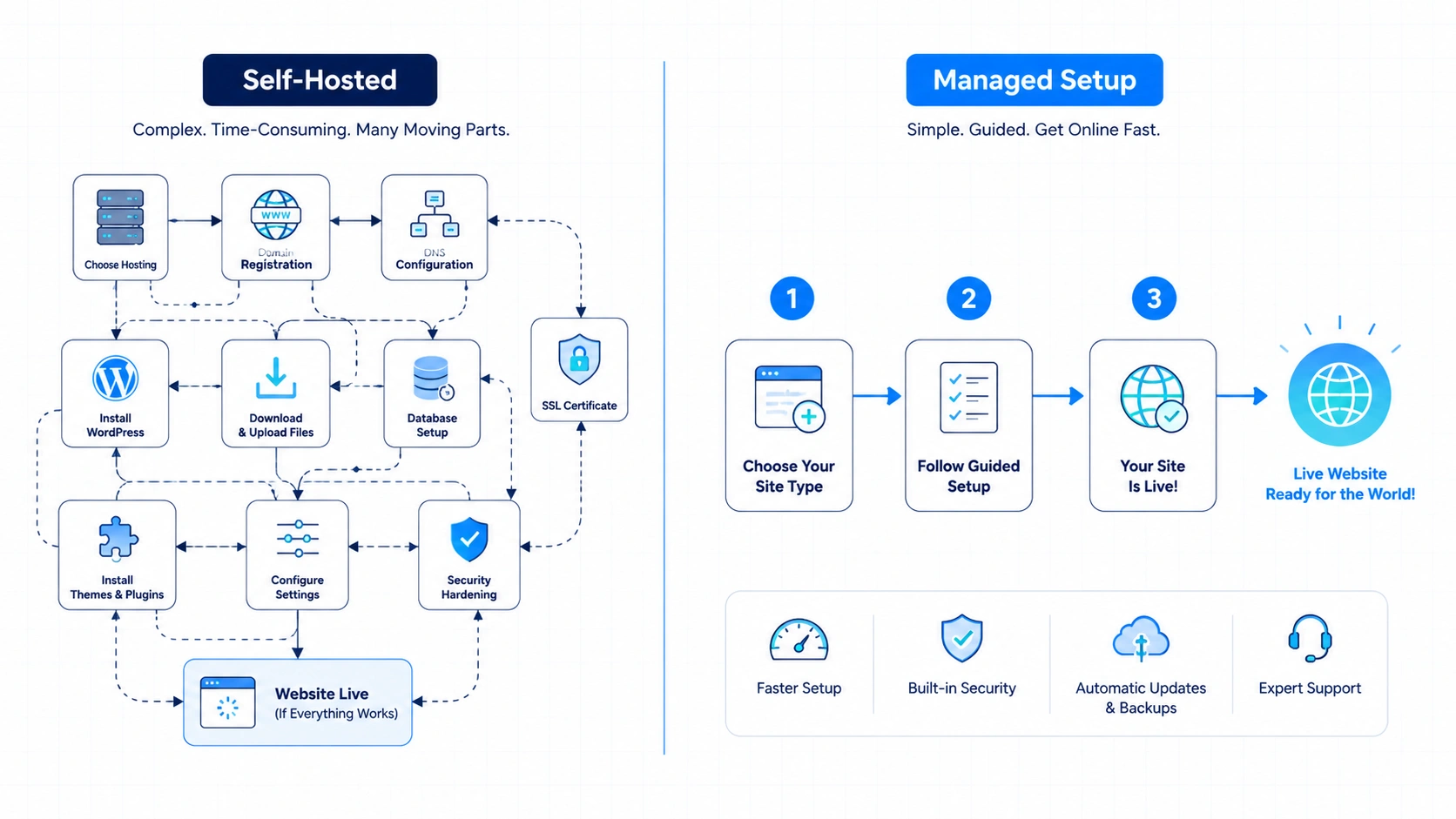
I know what it feels like to wake up at 3:00 AM because a database connection error crashed my self-hosted site. I had to log into cPanel, check the PHP version, and fix a corrupted database table. I lost three hours of sleep.
Last week, I tested the WordPress.com onboarding. I clicked three buttons. The site was live.
I did not configure a DNS record. I did not install an SSL certificate. I did not set up a Linux Cron job to handle scheduled posts.
It felt weird. I kept waiting for something to break. It didn’t.
What Changes Day to Day
Setup Experience
Self-hosted setup requires a checklist. You buy hosting. You point your domain nameservers. You install WordPress via a script.
Then you install a security plugin, a backup plugin, and an optimization plugin. You spend an hour doing chores before you write a single word.
WordPress.com skips the chores. You type a site name, choose a template, and you are in the block editor.
Writing Experience
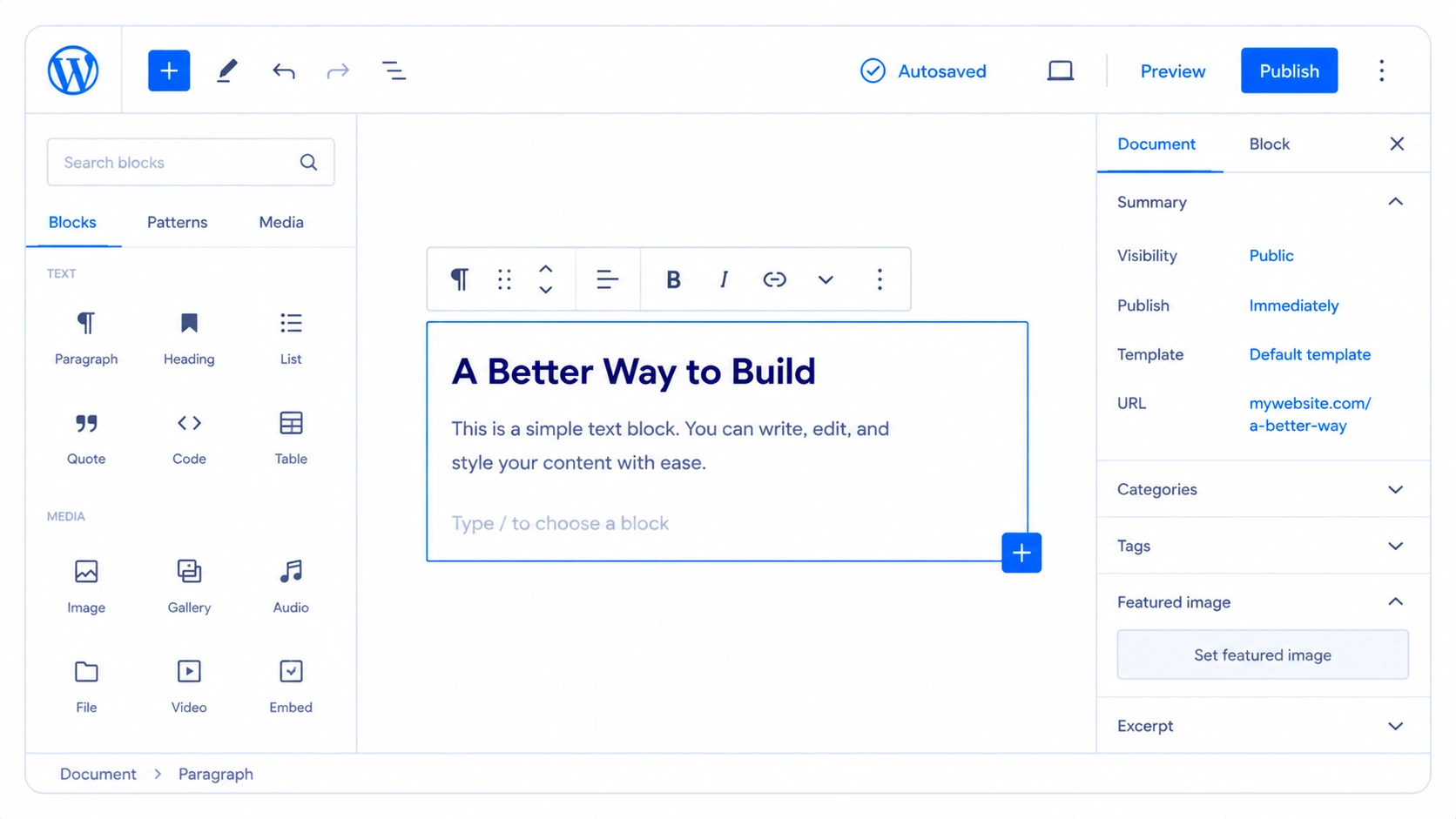
The actual writing experience is almost identical. Both use the Gutenberg block editor.
But WordPress.com feels faster during media uploads. I dragged a 5MB image into the editor. The platform automatically optimized it and served it through their built-in global network.
On my self-hosted site, that same action requires a separate image compression plugin. If that plugin breaks, my page speed drops.
Customization
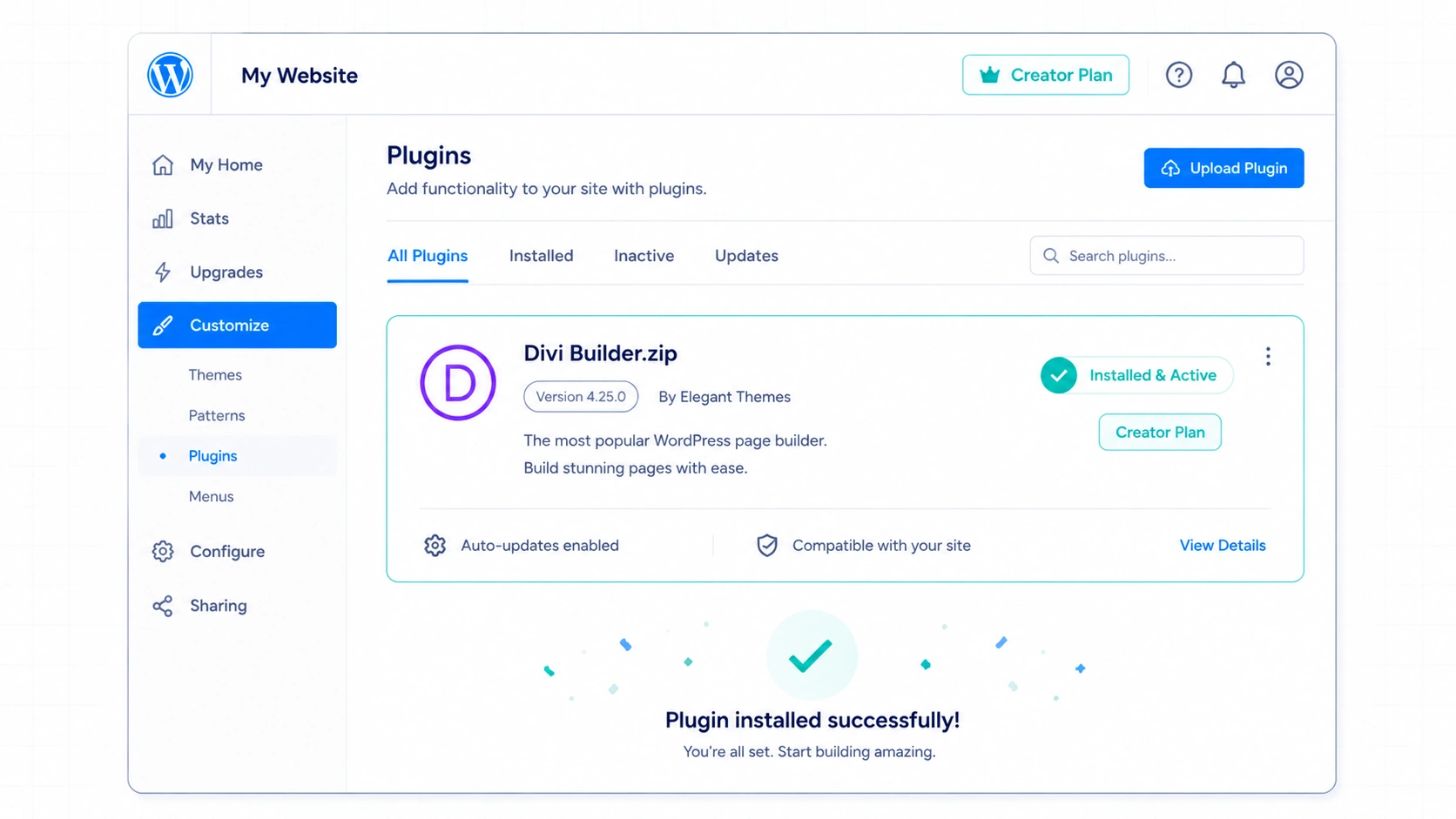
I use the Divi Builder for my client landing pages. On my self-hosted sites, I upload the zip file and configure the API key.
On WordPress.com, I did the exact same thing. I uploaded the Divi plugin zip. It worked without a hitch.
Here is the catch.
You must be on a plan that supports plugin uploads, like the Creator plan. If you are on the lower-tier plans, you cannot upload custom tools.
The Core Frameworks
The Ownership vs Responsibility Scale
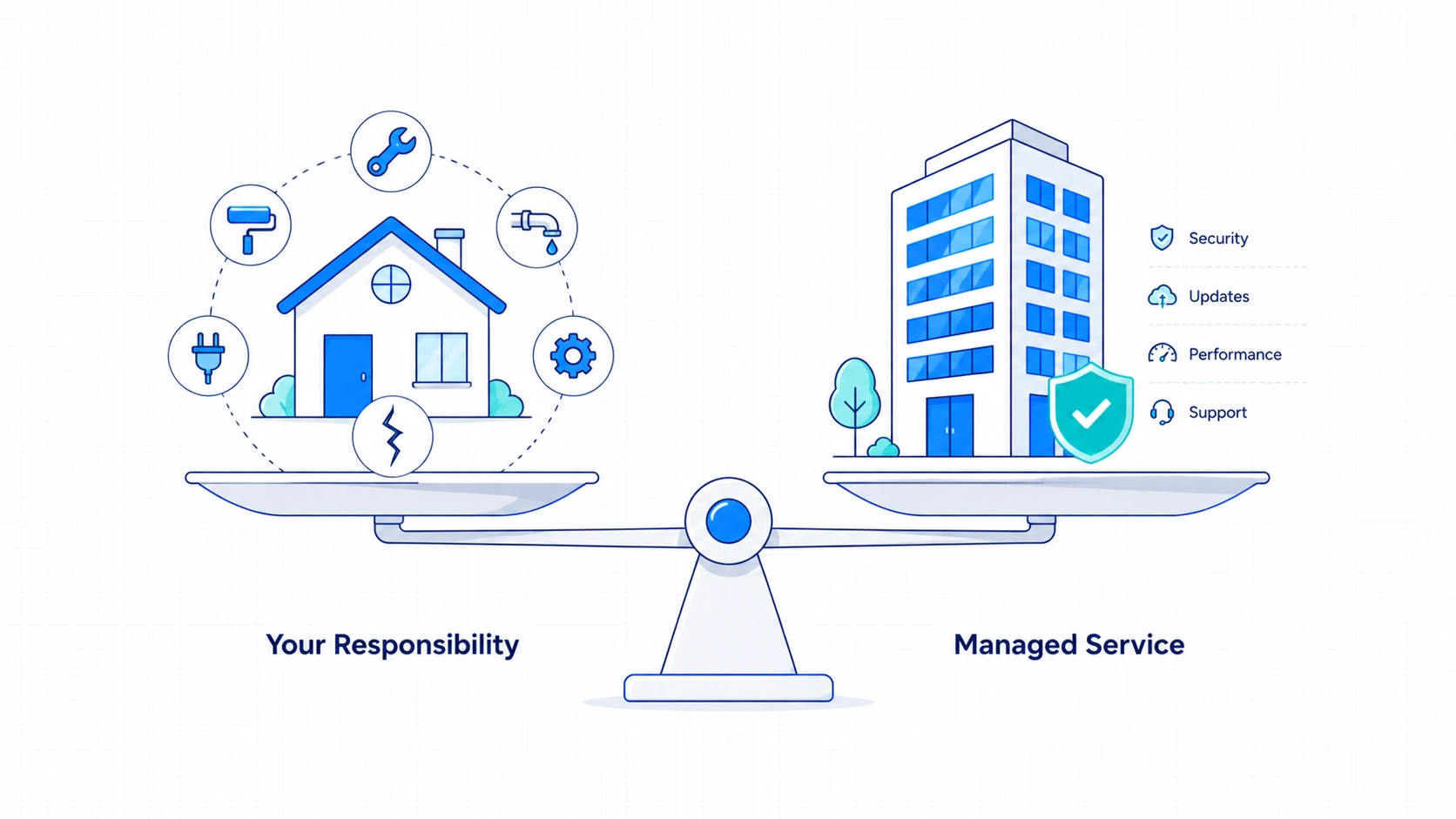
Think of your website like housing.
Self-hosted WordPress is like buying a house. You can knock down walls. You can paint the roof purple. But when the pipe bursts at midnight, you have to fix it.
WordPress.com is like a luxury condo. You own the space inside. You can bring your own furniture. But the management handles the security guard, the roof repairs, and the plumbing.
The Hidden Cost Calculator
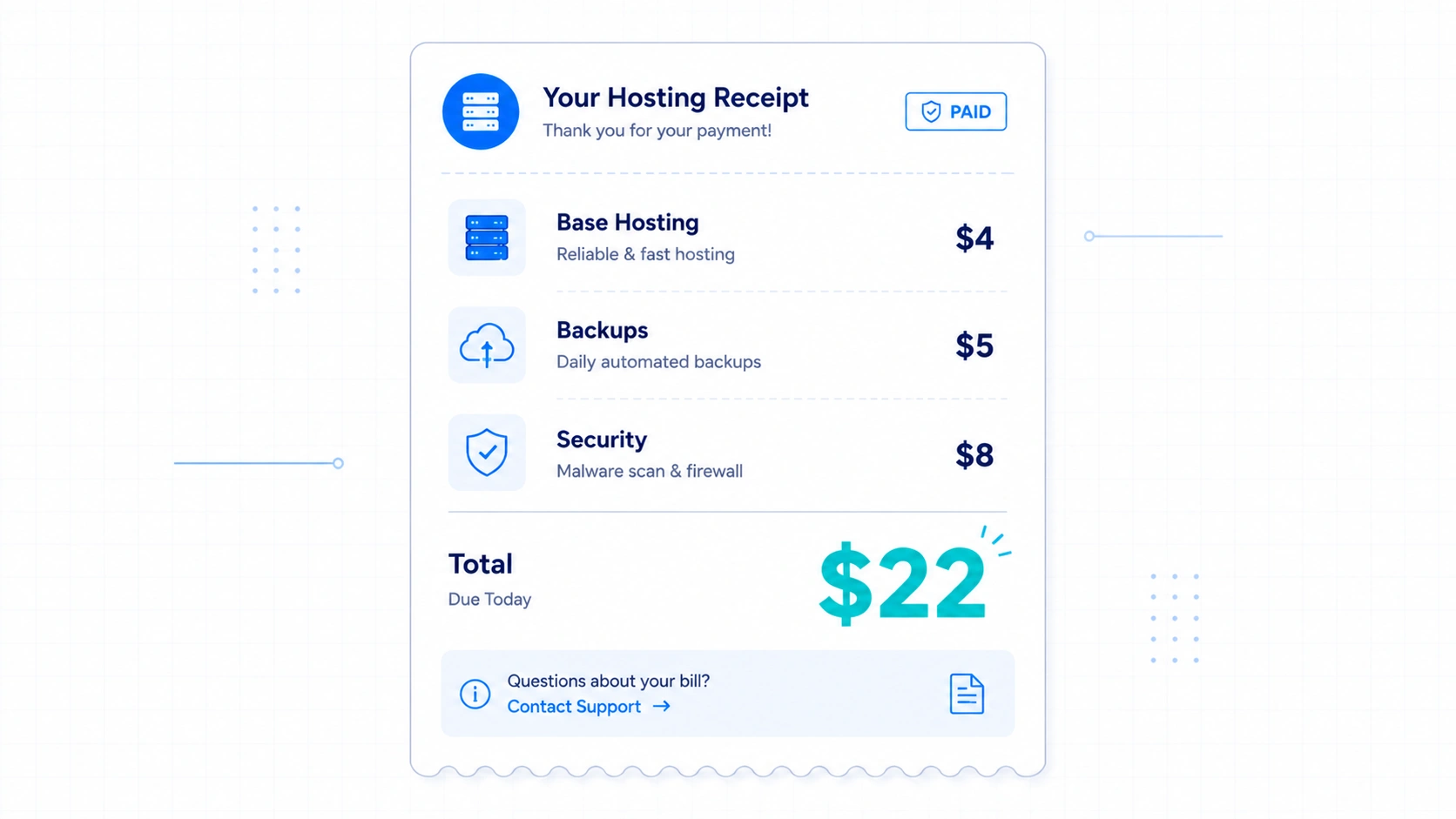
A self-hosted hosting plan looks cheap. It might say $4 per month.
That can be misleading. Here is what I actually pay to keep a self-hosted site running safely.
- Base hosting: $4 per month
- Premium backup storage: $5 per month
- Security monitoring: $8 per month
- Performance CDN: $5 per month
Your $4 hosting actually costs closer to $22 per month when factoring in the extras. It also costs your time. A platform is only cheap if your time is worth absolutely nothing.
Deep Dive Performance Tests
Maintenance and Updates
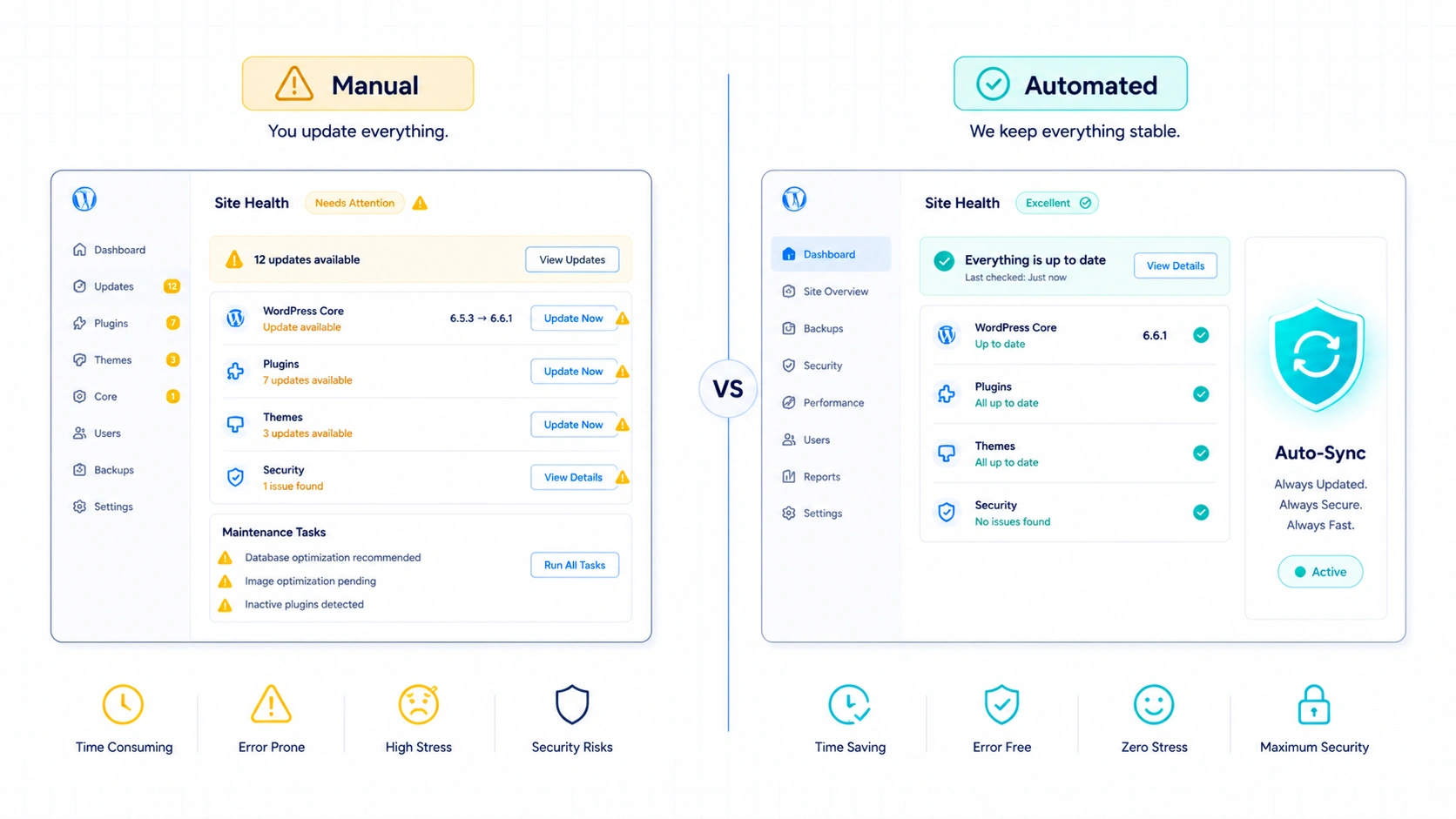
On my self-hosted sites, my dashboard constantly glows with yellow update notifications. Plugins update constantly. Sometimes, a plugin update conflicts with my theme.
Then the site breaks. I have to restore a backup.
During my testing week, I did not encounter any update-related plugin conflicts or maintenance interruptions. This managed environment significantly reduced the amount of manual maintenance I normally perform on my self-hosted sites.
Security and Backups
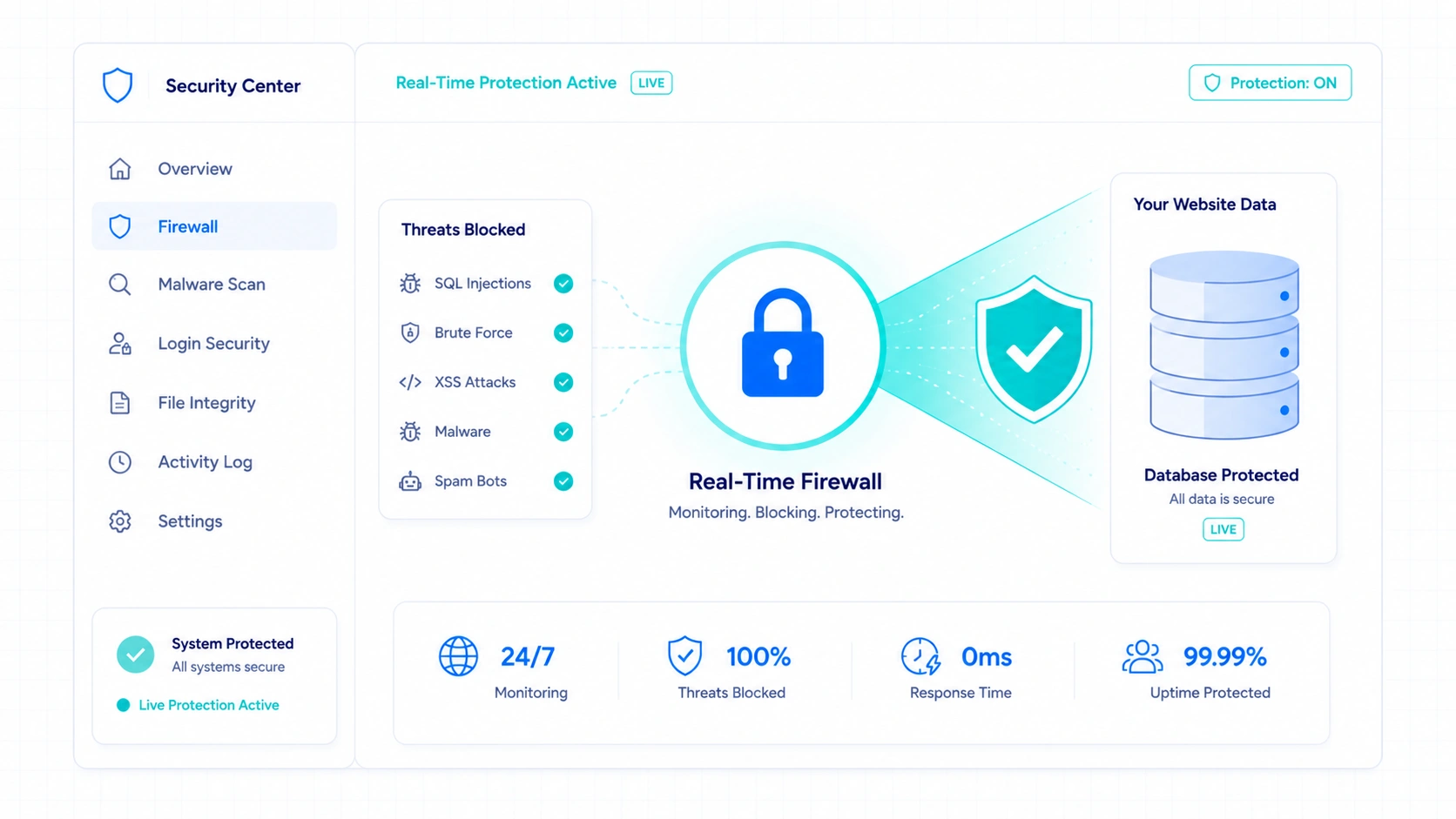
If your self-hosted site gets hacked, your host might just shut you down. You have to clean the malware yourself or pay a specialist $200.
WordPress.com includes real-time backups and firewalls. You do not configure security settings. You do not get locked out by a rogue security plugin asset.
SEO Experience
For my workflow, search visibility is everything. I need to know how easily a platform connects to Google Search Console and how it handles technical metadata.
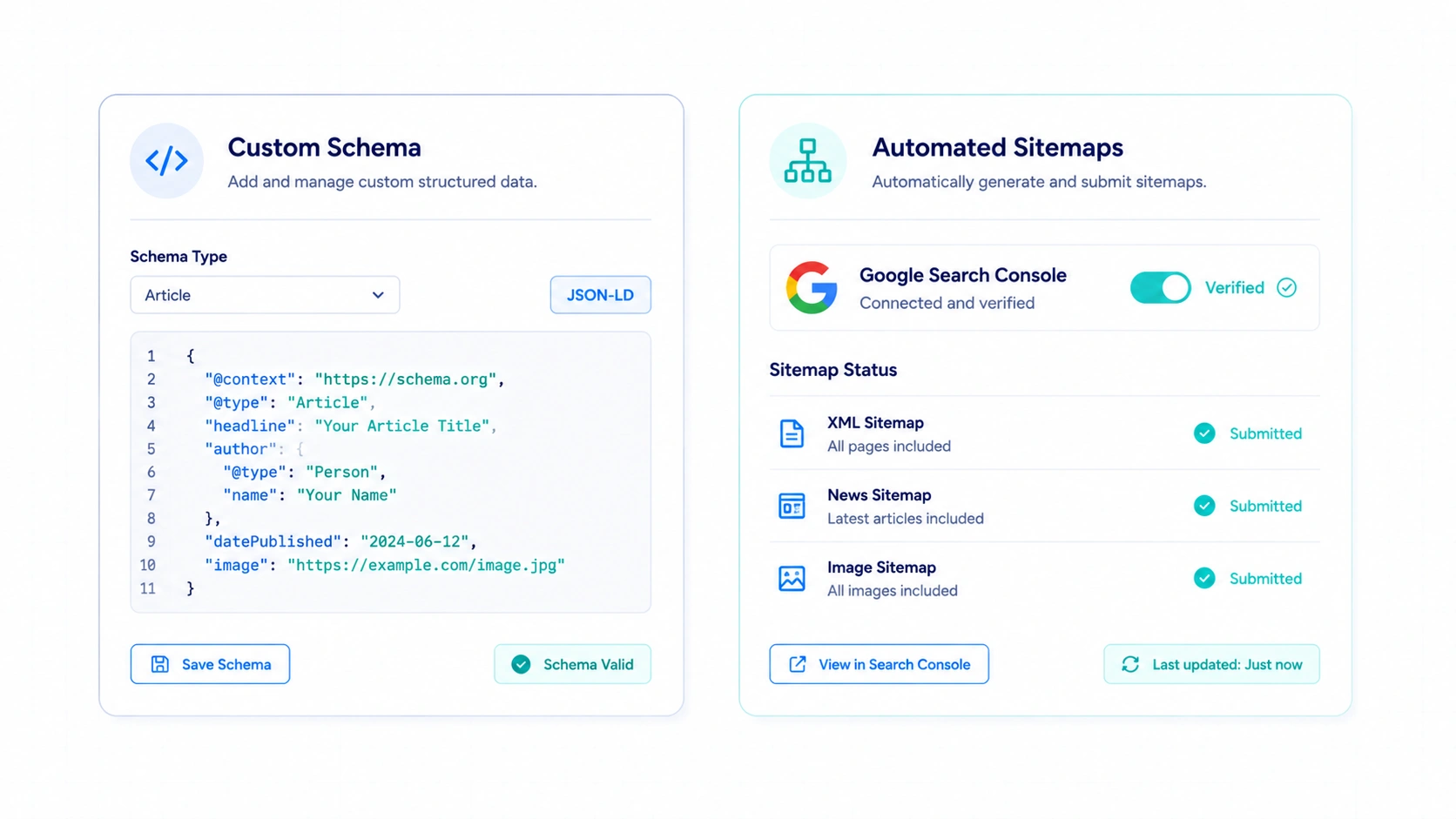
On self-hosted WordPress, you start with a blank slate. Out of the box, it lacks advanced metadata controls. You must install a dedicated plugin like Rank Math or Yoast to map your sitemaps and schema markup.
This gives you massive flexibility. You can edit your .htaccess file or configure custom server-level redirect rules to patch broken links instantly.
WordPress.com handles technical SEO right out of the box. The platform generates clean sitemaps and structures your robots.txt file automatically.
During my tests, verifying my site with Google Search Console took one click inside the traffic settings panel. You do not have to copy and paste HTML verification tags into theme headers.
Here is what I noticed. For a standard content site, the built-in SEO tools on WordPress.com are perfectly sufficient.
But if you require ultra-custom URL rewrites or want to experiment with advanced programmatic SEO databases, the self-hosted environment still offers fewer restrictions.
Themes and Design
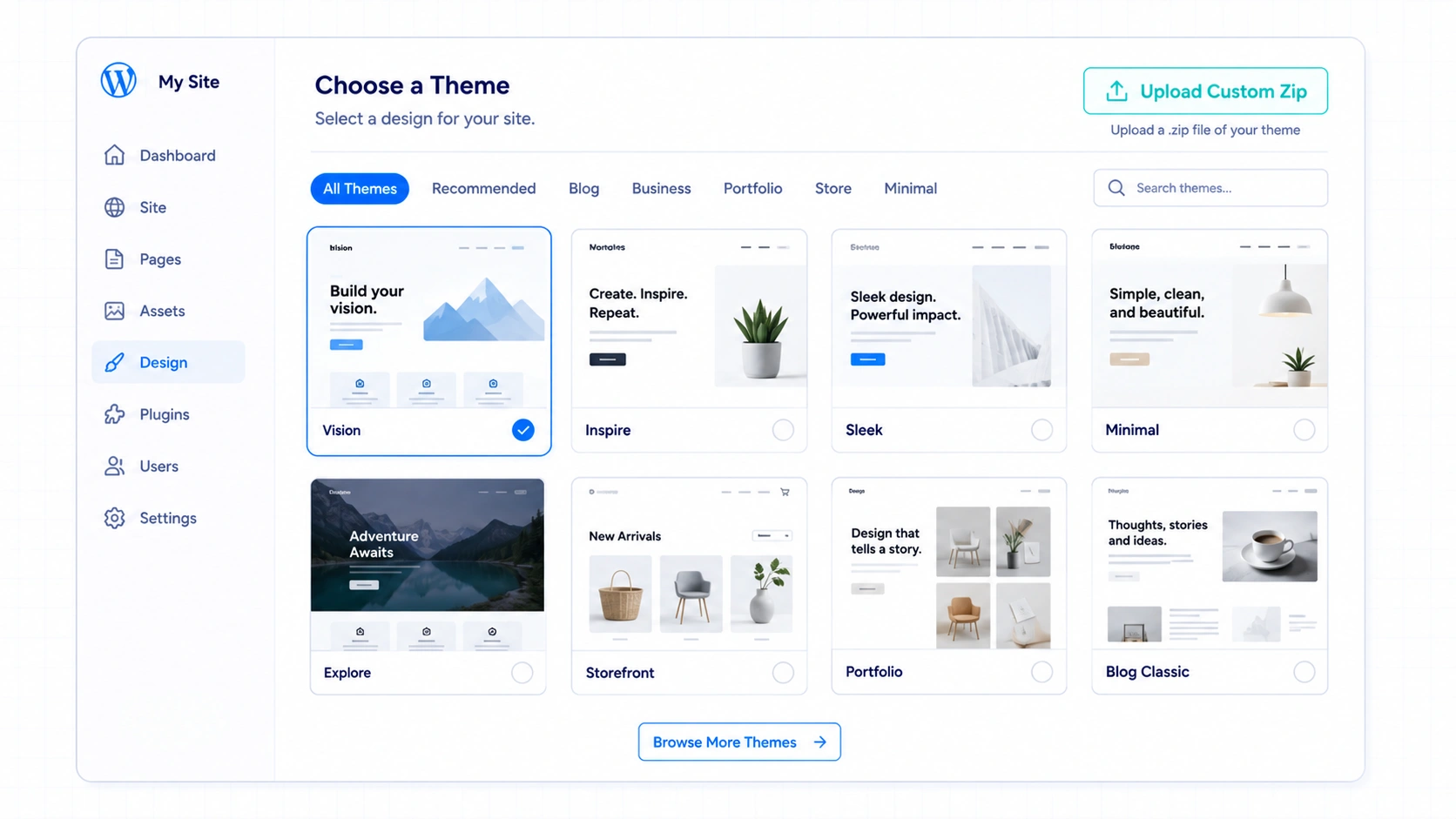
Design flexibility can make or break a creator brand. I tested how both environments handle visual layouts and third-party page builders.
Self-hosted WordPress gives you total freedom from day one. You can install lightweight starter themes like Astra or GeneratePress, then completely strip down the code.
If you use page builders like Divi or Elementor, you can modify every container, margin, and CSS class.
WordPress.com approaches design differently depending on your plan. On the starting tiers, you are limited to a curated selection of block themes designed for the native site editor.
These themes are clean, but you cannot inject custom CSS scripts to tweak minor margins unless you upgrade.
Once you jump to the Creator plan, that restriction vanishes. I uploaded a custom child theme zip file that I built years ago. It compiled perfectly.
For my workflow, the block editor on WordPress.com felt noticeably smoother. There was zero layout shifting or lag when reordering heavy media columns.
On my self-hosted site, poor server resources can cause the visual builder to stutter when editing long posts.
Pricing Beyond the Monthly Cost
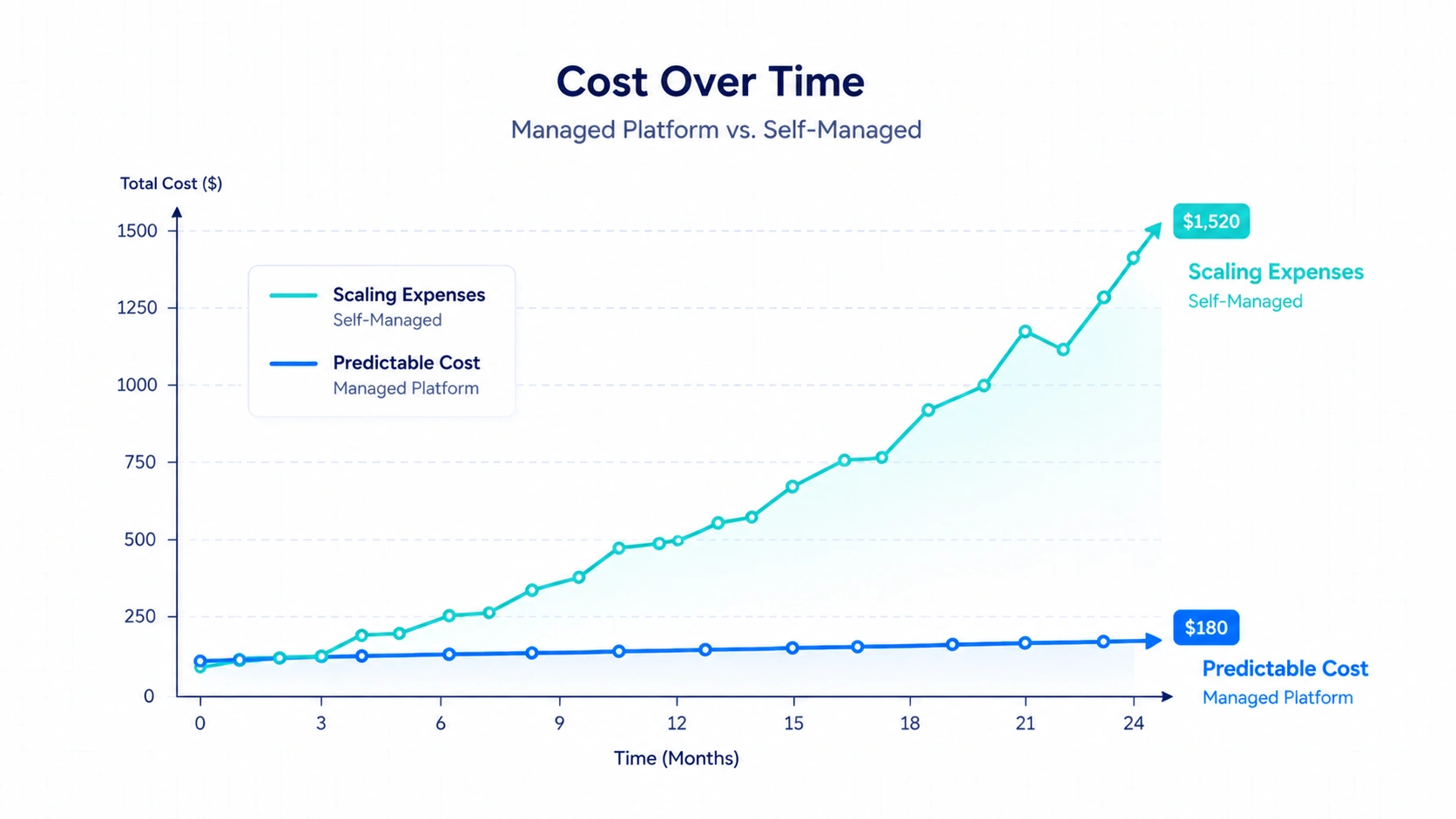
Let’s talk about the real cost of ownership. Most people look at a pricing chart and only compare the baseline subscription fees. That is a mistake.
With self-hosted WordPress, your financial leak happens in pieces.
- The Hosting Bottleneck: A cheap shared hosting plan can degrade in speed as soon as you hit 10,000 monthly visitors. To keep up, you must migrate to a virtual private server (VPS) or a premium managed host. That bumps your cost significantly.
- The Plugin Stack: Free security and backup plugins work until your database grows. Then you need premium versions of tools like UpdraftPlus or Solid Security to handle automated remote storage and real-time malware scans.
- The Time Sink: If a plugin update breaks your styling, you waste hours troubleshooting. If you hire an external developer to fix a broken database table, you are out of pocket immediately.
WordPress.com consolidates these variables into a single bill on their higher plans. You do not buy separate backup storage. You do not pay for a premium CDN network to speed up global asset delivery.
The real trade-off is predictability versus granular spending.
With self-hosted, you can start micro-cheap but face scaling costs and time investments.
With WordPress.com, you pay an upfront premium for the plan, but your maintenance costs drop to zero.
Migrating Between Platforms
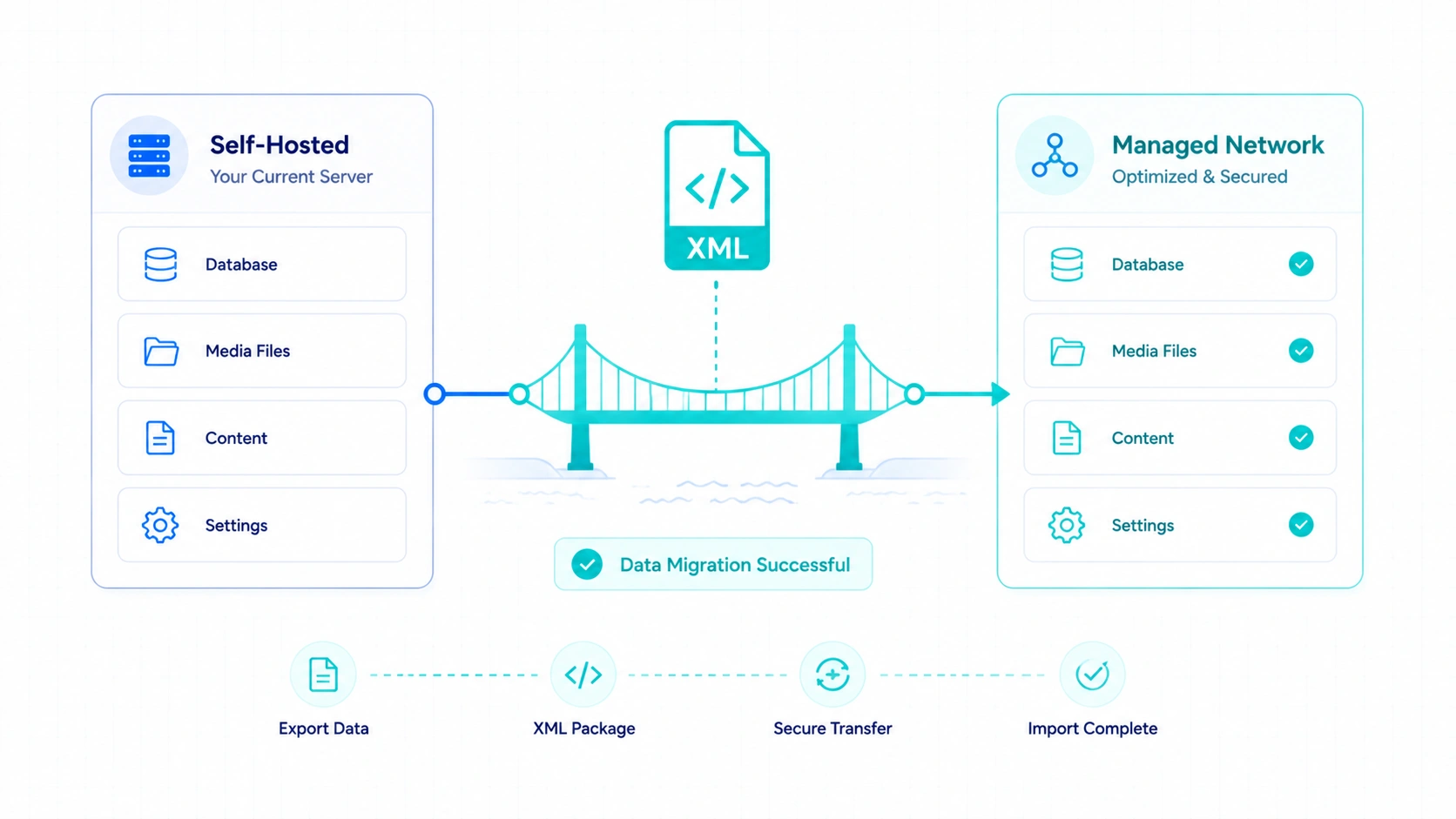
Your initial choice is not a permanent prison sentence. You can move your data, but the friction levels differ wildly based on your direction.
Moving from Self-Hosted to WordPress.com
This pathway is relatively simple.
WordPress.com wants your business, so they built automated import tools.
You export your self-hosted site into a standard XML file, upload it, and the system pulls in your posts, comments, and media attachments.
If you migrate to the Creator plan, you can even port over your existing plugin configurations.
It makes sense for creators who are tired of playing systems administrator and want to offload server worries.
Moving from WordPress.com to Self-Hosted
This is where you will face friction.
If you are on a lower-tier plan without plugin access, exporting your content works fine, but your design settings will break.
You will need to manually rebuild your navigation menus, widget areas, and theme customizations on your new host.
Who should migrate?
If your business model morphs into an enterprise SaaS tool, or if you need to build a highly non-standard membership portal that requires custom database tables, migrating to a dedicated self-hosted server becomes necessary.
My Biggest Surprises
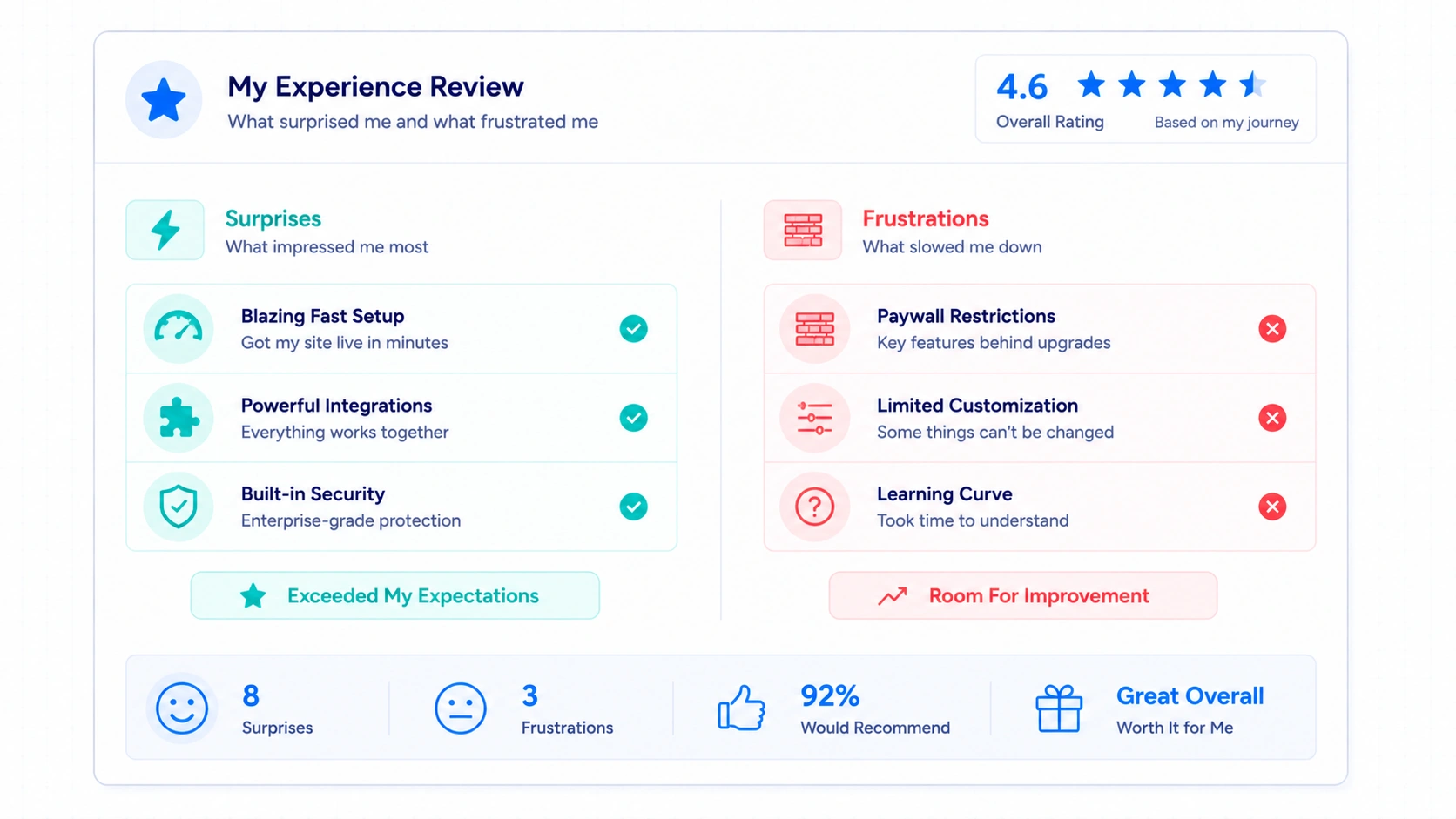
After running these environments side-by-side for a week, several operational details caught me off guard.
Here is my personal, unfiltered breakdown.
Three Positive Surprises
- WordPress.com Global Speed: The media delivery speed shocked me. Images loaded almost instantly across global testing locations without requiring any caching configuration.
- The Jetpack Integration: On self-hosted sites, the Jetpack plugin can feel bogged down and heavy. On WordPress.com, it is deeply baked into the infrastructure. It runs natively and does not slow down the dashboard UI.
- Unexpected Flexibility: I was surprised by how open the environment felt on the higher plans. It was much more flexible than I expected, especially when it came to using my own custom themes and plugins without restrictions.
Three Frustrations
- Plan Walls: Hitting a wall where you cannot install an external utility plugin because you are on a lower plan feels incredibly restrictive if you are used to the wild west of self-hosting.
- The Dashboard Divergence: The WordPress.com custom management interface is highly streamlined. If you are a veteran used to the classic, gritty WordPress wp-admin view, finding specific native settings takes an extra click.
- Domain Mapping Hurdles: If you buy your domain name through a strict third-party registrar, mapping the nameservers to WordPress.com during the initial setup can trigger brief DNS propagation delays that stall your launch evening.
Who Should Choose WordPress.com

If your priority is publishing content, launching products, and scaling a digital business without troubleshooting software errors, choose WordPress.com.
It is tailor-made for solo creators, freelance copywriters, and small business owners who do not have an internal IT department.
You get the power of the WordPress ecosystem without the technical debt that usually accompanies it.
Who Should Choose Self-Hosted WordPress
If you require total operational freedom from your very first dollar spent, choose self-hosted WordPress.
This route fits developers, technical agencies building custom client builds, and experimental hobbyists who love modifying server configurations.
If you enjoy optimizing databases and want to manage your infrastructure costs piece by piece, the self-hosted route remains the gold standard.
If I Were Starting Again Today
If I lost all my sites today and had to start from zero, my choice would be clear. I would use WordPress.com.
Years ago, I loved the thrill of configuring custom servers and tweaking server-side caching scripts.
Now, I want results. I want speed.
I want to spend my mornings writing copy and my afternoons testing growth strategies.
I do not want to spend my limited time checking error logs or worrying if a routine security patch will take my business offline.
Final Verdict
Stop overcomplicating the choice.
Both tools use the exact same core engine to build massive, highly profitable websites.
If you want absolute control and enjoy server management, go self-hosted.
If you want to launch fast, stay secure, and focus entirely on your business, use WordPress.com.
FAQ
Is WordPress.com good for SEO?
In my experience, yes. It includes built-in sitemaps, fast asset delivery, and automatic structured data capabilities. You can also install advanced ranking plugins once you upgrade to the Creator plan.
Can I monetize a free WordPress.com site?
Free accounts face steep restrictions on advertising networks. To run custom affiliate tracking scripts, header bidding, or native ad blocks, you need to step up to their business-oriented plans.
Can I switch from WordPress.com to self-hosted later?
Yes. You can export your database and media files into an XML file package at any time. Moving your data out to an external host is completely supported.
Does WordPress.com allow plugin installations?
You can install any compatible WordPress plugin if you are on the Creator plan or higher. Lower plans restrict external code installations to protect system stability.
Which option is better for beginners?
If your priority is simplicity, WordPress.com is significantly better for beginners. It bypasses the technical learning curve of domain mapping, security hardening, and hosting configuration.

About The Author
Bishnu Mahali is a blogger, content creator, and digital marketer with over seven years of experience building WordPress websites, publishing content, and testing online business tools for himself and clients. He regularly evaluates WordPress themes, plugins, hosting platforms, SEO software, and marketing solutions through hands-on projects, sharing practical insights based on real-world experience rather than theory.