Disclosure: This website uses affiliate links; I may earn commissions at no extra cost to you. Learn more.
Want to Sell Digital Products with WooCommerce to create a resilient, 24/7 income stream in 2026?
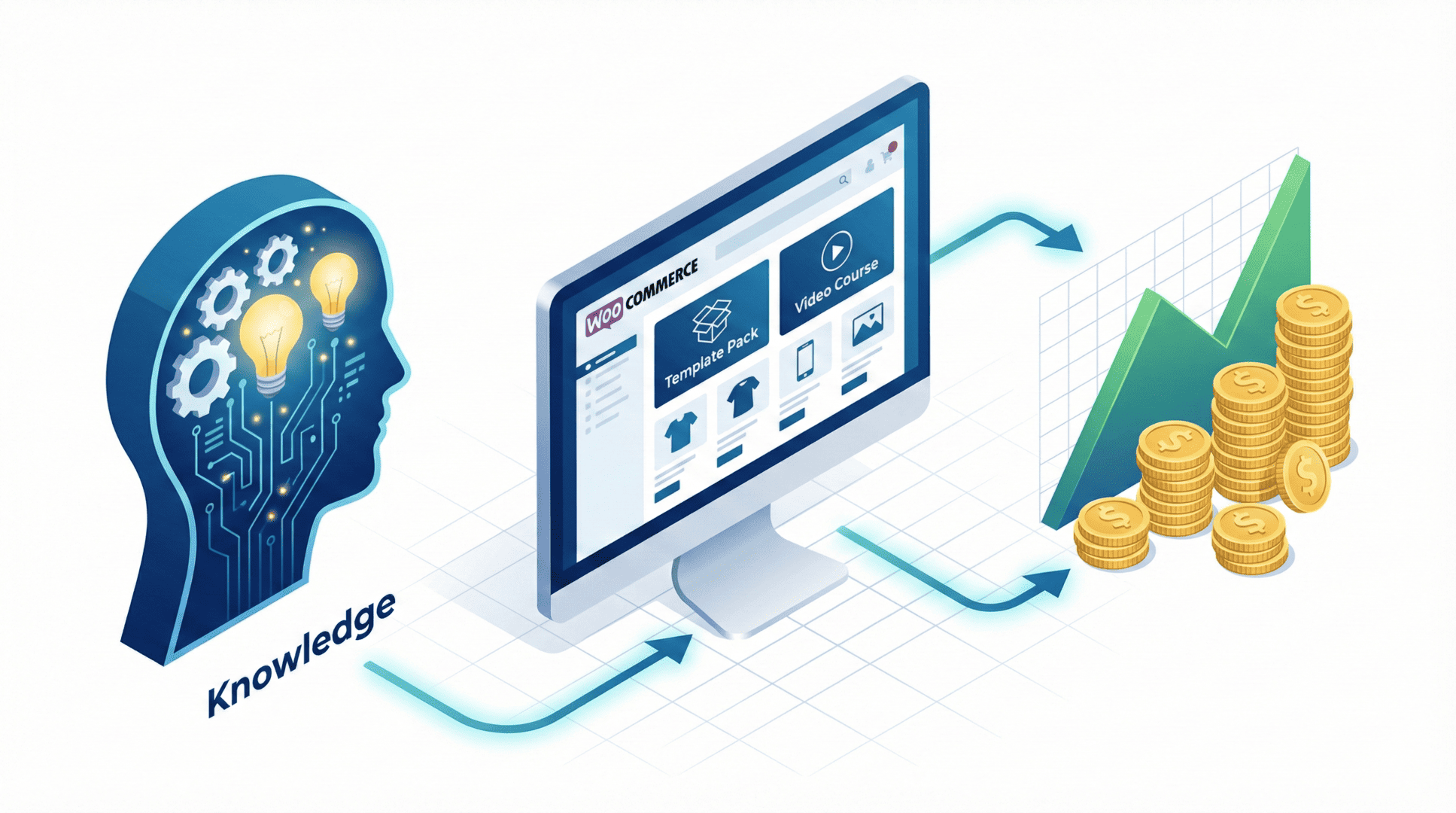
Today, I’m going to show you exactly how to take the knowledge you already have in your head, whatever it may be, and sell it as a digital product for some passive income.
The Creator Economy is already mature in 2026, and it is expected to grow rapidly in 2027 and beyond.
It is no longer just about getting likes on social media; it is about building assets.
However, most creators are still making a fundamental mistake.
They are building their empires on rented land or relying on third-party marketplaces like Creative Market or Etsy that take massive fees and strangle their growth.
I would personally recommend using something that you can control as much as possible, like WooCommerce in this example.
I have used the exact setup in this guide to build my own digital shop, selling everything from WordPress Block Patterns to YouTube Thumbnail Templates, stock photo collections, comprehensive guides, and whatnot.
If you are looking for passive income store ideas for 2026, this is your roadmap.
By the end of this post, you will have a complete, professional WooCommerce Digital Downloads Setup or whatever virtual product you’re about to sell using it.
But before that…
Chapter 1: Why Selling Digital Goods is the Perfect Business Model?
If you want a sustainable source for your income this year, digital products are the undisputed answer.
Unlike physical eCommerce, which involves logistics, supply chains, and thin margins, digital products operate on a model of infinite leverage.
The Economics of the Infinite
Here is why I prefer downloadable products over physical goods:
No Inventory: You create the file once. You can then sell that same file to one person or one million people. There is no restocking fee.
100% Profit Margin: Once the initial labor is done, the cost of replication is zero. There is no shipping, no warehousing, and no manufacturing cost.
Global Reach: You can sell to a customer in Tokyo while you are sleeping in New York.
Instant Gratification: Your customer gets their Download link immediately upon payment. There is no “3-5 business days” wait time.
Whether you are selling Divi 5 Templates like me, high-resolution stock images, or full online courses, the mechanics are identical.
You are selling value, packaged as data.
The Marketplace Trap (VS Creative Market)
When most creators start, they gravitate toward marketplaces like Creative Market.
It seems easy. You just upload your file and wait for sales. But I quickly realized this is a trap.
Here is the reality of relying on Creative Market or any other similar platforms:
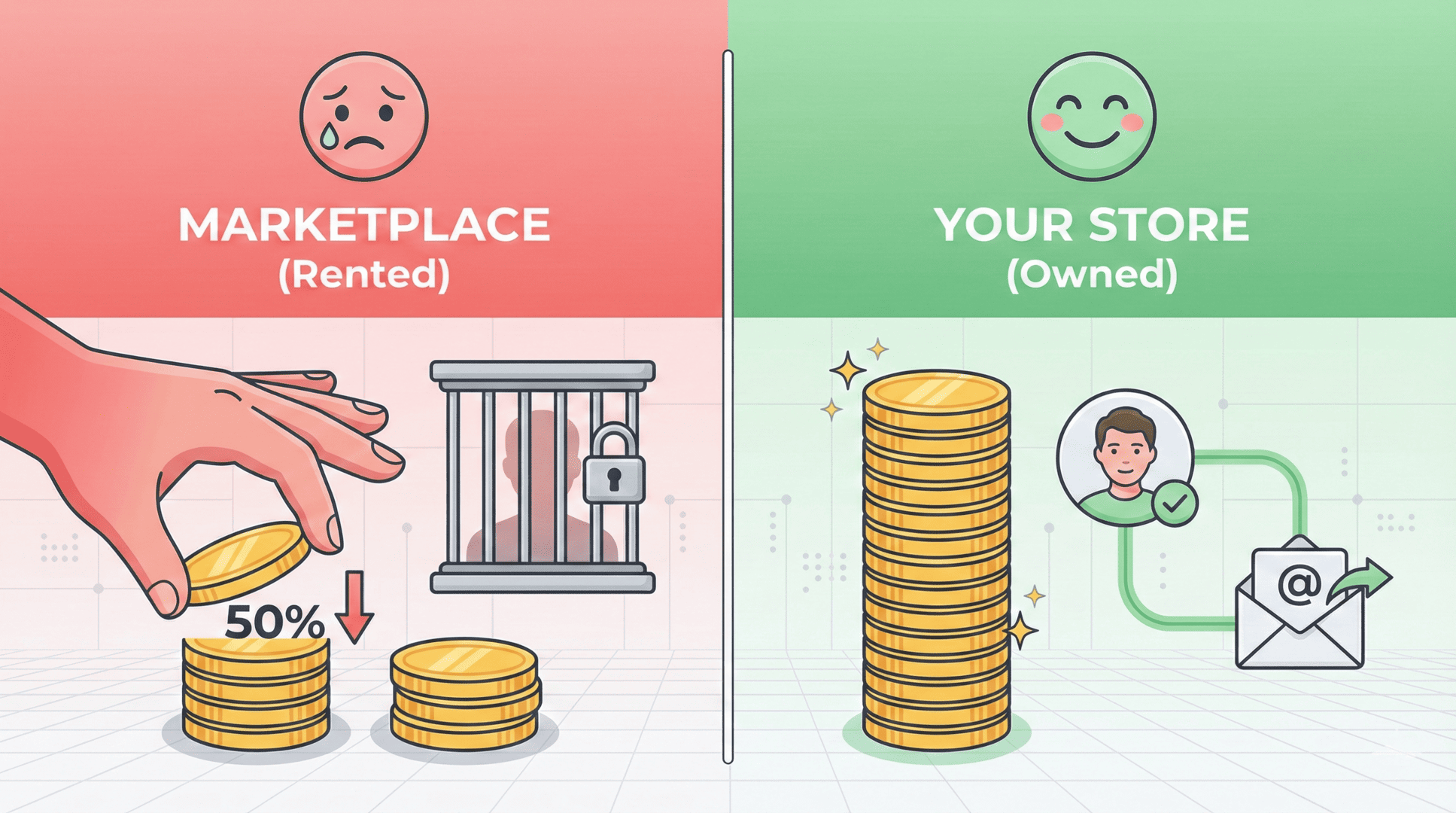
The Fees: They take a massive cut (often 30-50%) of your hard-earned revenue.
No Data: They do not give you the customer’s email address. You cannot build an email list. You cannot upsell. You cannot build a brand.
Competition: Your product is listed right next to thousands of competitors, driving prices down.
On marketplaces like Creative Market, you are a commodity.
On your own site, you are a brand.
With WooCommerce, you keep the profit. You own the payment data transfer logs. You own the customer relationship.
Chapter 2: Step-by-Step WooCommerce Digital Downloads Setup
You don’t need a developer to do this. You just need access to your WP Admin dashboard.
Since I run a WooCommerce setup myself, I can walk you through the exact settings in the product data panel.
Step 1: The Foundation
I am assuming you already have a WordPress website. If so, simply install the free WooCommerce plugin and run the setup wizard.
This creates the basic pages you need, like Shop, Cart, and Checkout.
Alternatively, you can also directly get started with WooCommerce from their official site or build a future-proof online home for your business with WordPress here.
Step 2: The Magic Checkboxes for Virtual Products
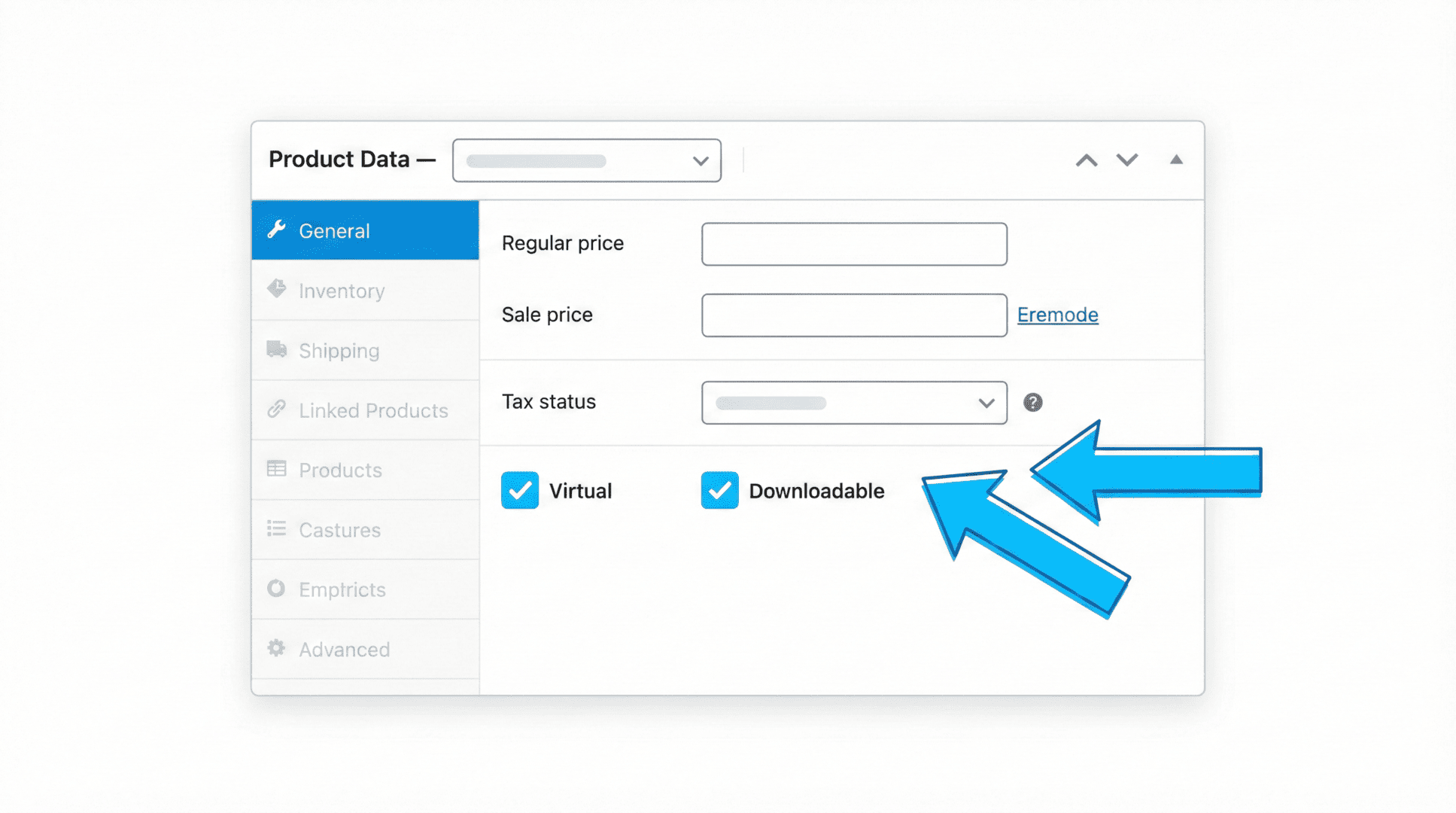
This is where most beginners get confused when managing products.
When you create a new product, you need to tell WooCommerce that there is no physical box to ship. If you skip this, the checkout will ask customers for a shipping address, which kills conversion rates for digital downloads or sales.
In the product data panel, look for the General tab. You must check two specific boxes:
Virtual: Checking this turns the item into one of your virtual products. It immediately removes the shipping calculator and shipping charge from the checkout flow. This streamlines the user experience significantly.
Downloadable: This reveals the download settings tab, where you upload your files and configure delivery options.
Step 3: Hosting and Adding Files
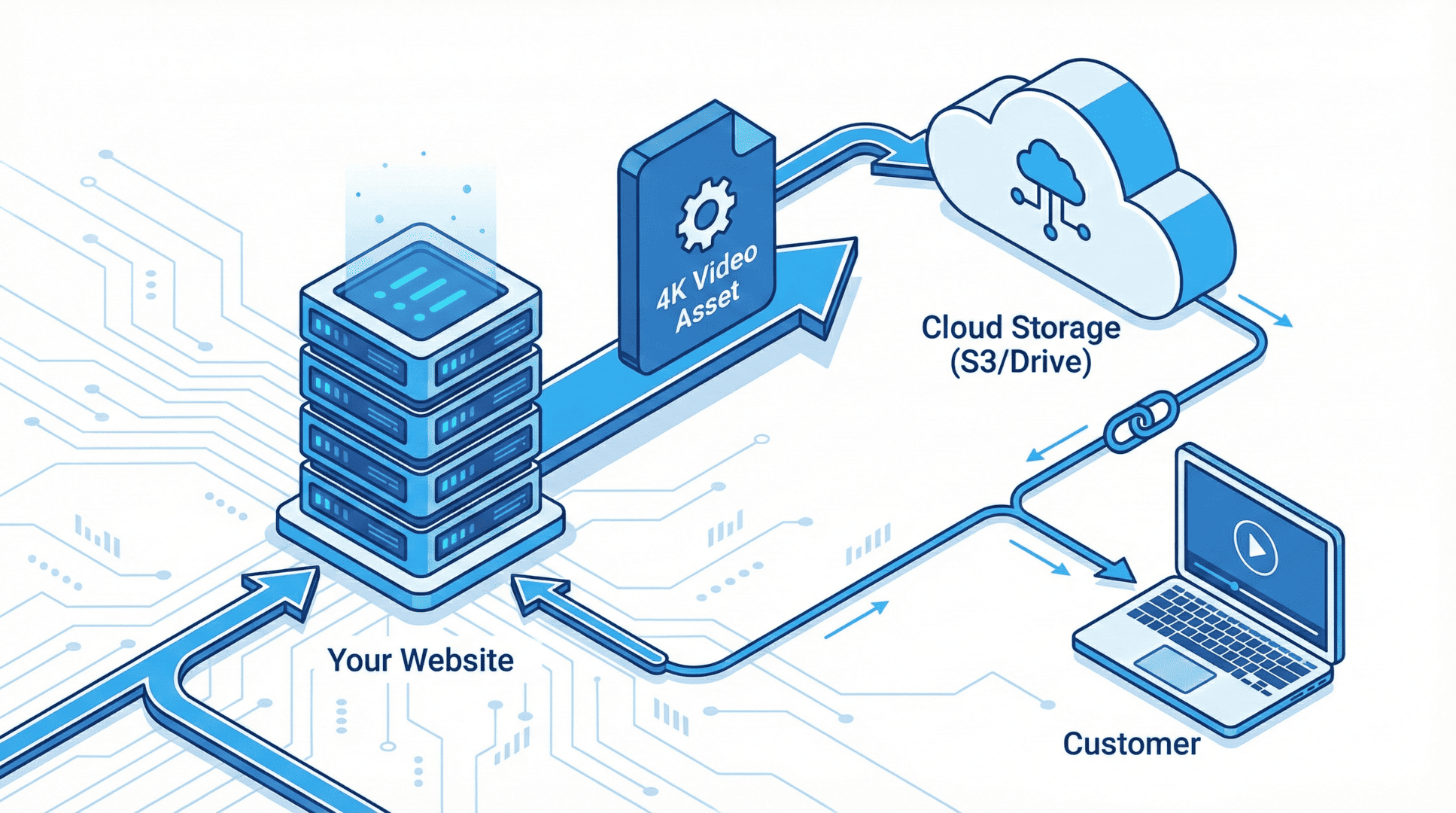
Now, go to the General tab to find the Add File button.
You have a few options for hosting your media files, and the right choice depends on what you are selling:
Media Library: This is fine for small PDFs or lightweight zip files. You upload directly to your site via the dashboard.
External URL: This is essential for large files. If you are selling 4K video assets or massive software packages, do not upload them to your WordPress host. It will slow down your site and crash your server. Instead, host the files on external storage solutions like Amazon S3, Google Drive, or Google Cloud Storage.
Use the WP Offload Media plugin. It offloads your files to the cloud automatically but serves them as if they were local.
Once uploaded, enter the File URL and give it a name. WooCommerce automatically handles the security (more on that later).
Step 4: Configuring Download Limits and Expiry
One of the biggest fears creators have about selling digital products is piracy. “What if someone shares the link on Reddit?“
WooCommerce has built-in protection in the download settings:
Download limits: You can set how many times a user can click the link. For example, you might allow 5 downloads to account for failed attempts, but stop it there to prevent mass sharing.
Download expiry: You can set the link to expire after a certain number of days (e.g., 7 days). This forces users to save the file immediately.
File Download Method: For most servers, “Force Downloads” is the best method. However, if you are on an NGINX server, using “X-Accel-Redirect” is the most secure method as it protects your Site URL structure from being scraped. (Ignore this if it’s too technical for you; it will be taken care of.)
WooCommerce adds a Unique String after the Filename for security, ensuring users can’t just guess the URL of your other digital assets.
Step 5: Handling Complex Products (Variable Product)
What if you want to sell a “Standard License” vs. an “Extended License” for your photos?
You can switch the product type from “Simple Product” to Variable Product.
This allows you to create Downloadable Variations. You can offer:
Variation A: Low-res stock photos for web use ($10).
Variation B: High-res RAW files for print use ($50).
Each variation can have its own price, its own SKU, and its own unique File URL.
And obviously, you can do this for any product; it’s just an example here.
If I have to give one more example from my own digital products, then I might sell various tiers of template packs.
Chapter 3: Getting Paid: Payment Gateways and Security
To make this truly “passive,” you need the right extension stack from the WooCommerce Marketplace.
You cannot be manually emailing files to people; the system must handle the payment data transfer instantly.
The Best Gateway: WooPayments (WooCommerce Payments)
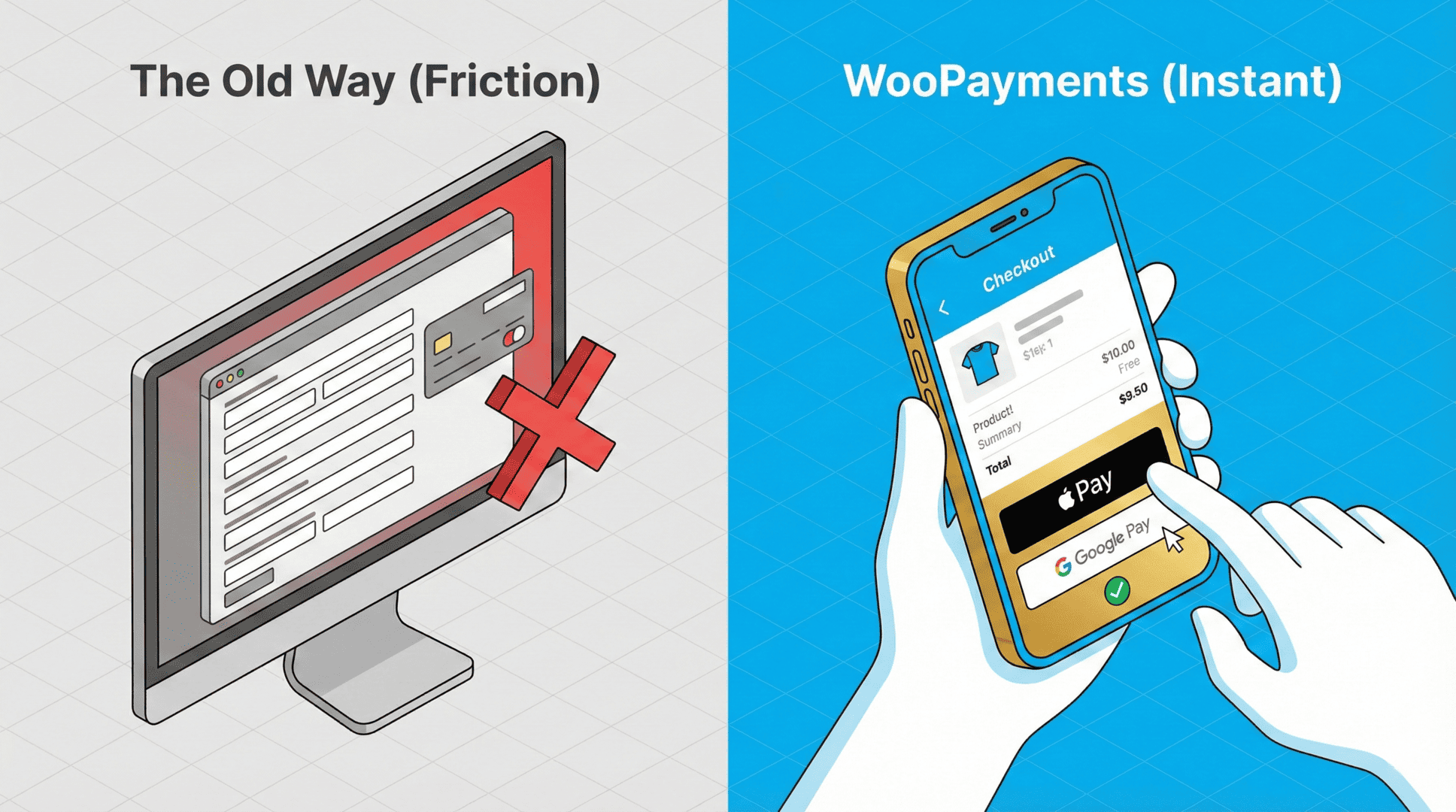
You want to make it as easy as possible for people to give you money.
I recommend WooPayments (WooCommerce Payments). It keeps everything inside your dashboard and supports modern wallets like Apple Pay and Google Pay.
When I am selling a $20 Touch Portal Asset pack, I want the customer to be able to buy it with one thumb-click on their phone. Friction kills sales; WooPayments removes friction.
You can still use PayPal Standard or Stripe, but using the native solution often provides better reporting within WooCommerce Reports.
Security Essentials
Since you are handling transactions and digital downloads, security is non-negotiable.
SSL encryption: Ensure your secure connection (HTTPS) is active. Your Site URL should always start with https://. Without this, payment gateways won’t work, and browsers will flag your site as unsafe.
Web application firewall (WAF): Use a security service like Jetpack to block online attacks and brute force attacks.
Activity log: Keep an eye on who logs in and edits products. This is vital if you have a team.
Two-Factor Authentication: Enable this for all admin accounts to prevent unauthorized access.
Jetpack Backup: Real-time backups are your insurance policy against data loss.
Chapter 4: Delivery & User Experience
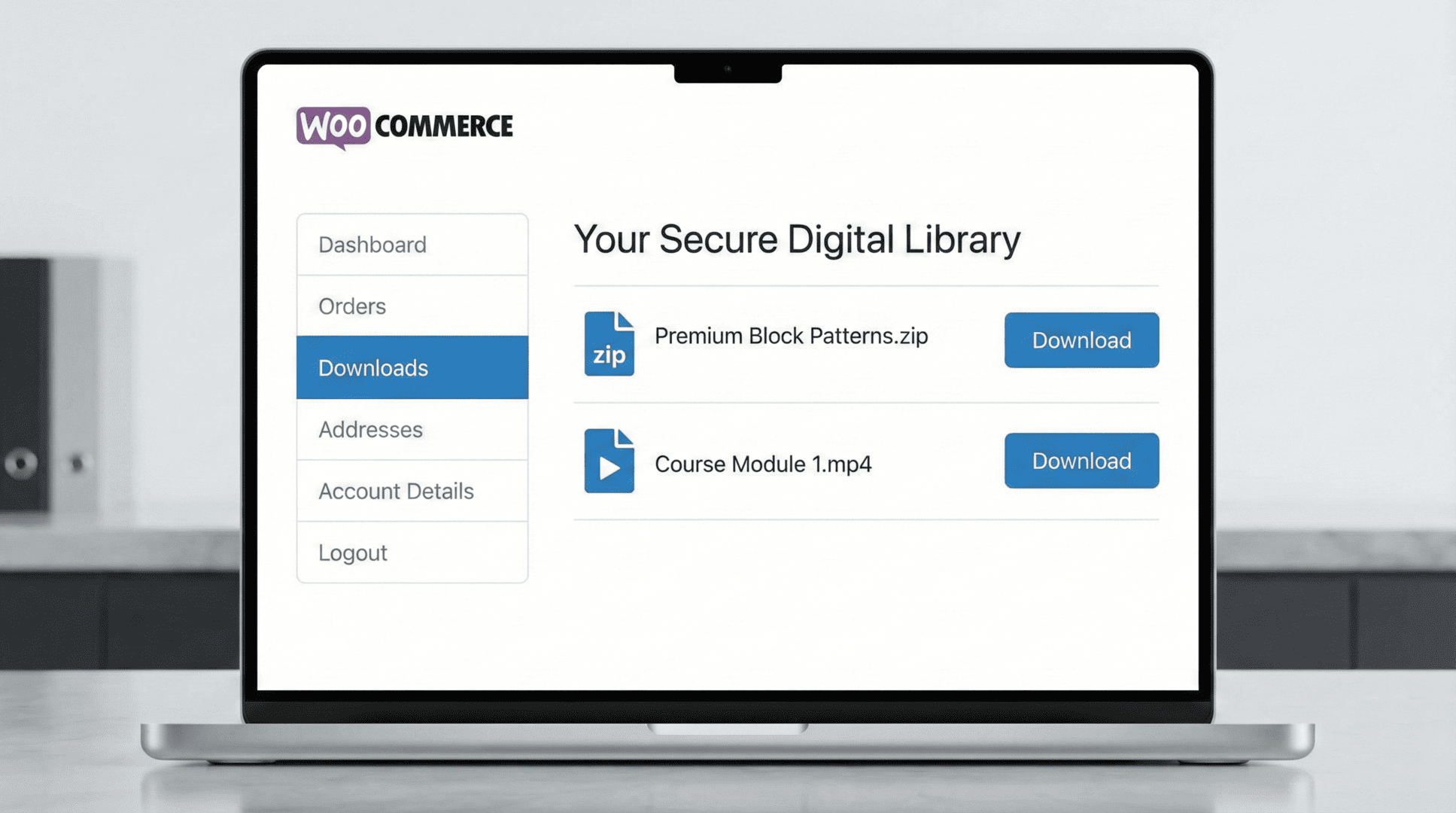
The most critical part of selling downloadable products is the delivery.
If a customer pays and doesn’t get the file instantly, they will panic and charge back.
Here is how the flow works in a properly configured WooCommerce store:
Order Confirmation Screen: As soon as the payment is confirmed via the secure connection, the links appear immediately on the “Thank You” page.
Email: They receive a transactional receipt email containing the Download link.
My Account > Downloads: This is the most important feature for customer retention. Registered users can log in, go to My Account > Downloads, and see a library of everything they have ever bought. They can re-download files if they lose them (subject to your limits).
Always create a test user and go through the checkout process yourself. Check your My Account > Downloads area to ensure the files are appearing correctly and the names make sense.
Chapter 5: Scaling Up: Courses, Memberships, and Licenses
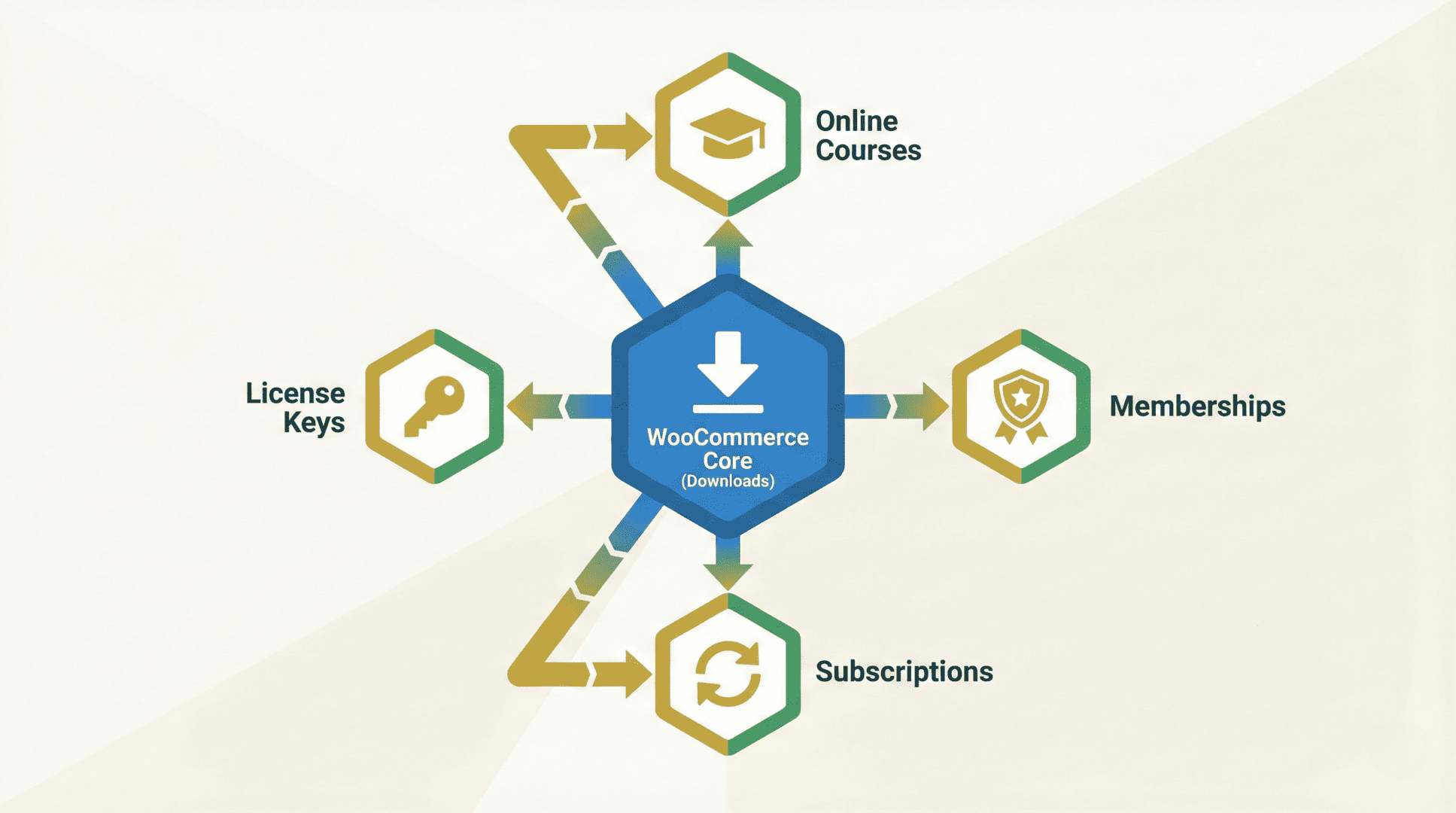
Once you have mastered selling simple digital products like PDFs or zips, you can scale your revenue by adding complexity and recurring billing.
Online Courses
Selling a zip file of videos is okay, but selling a structured course is better.
You can use Sensei Pro (an Automattic product) to turn your digital assets into a structured curriculum with quizzes, progress tracking, and certificates.
This increases the perceived value of your online courses significantly compared to a simple folder of documents and video files.
WooCommerce Memberships
Instead of selling downloadable products one by one, why not sell access to the whole vault?
WooCommerce Memberships allows you to restrict access to certain content based on membership tiers.
Tier 1: Access to blog posts.
Tier 2: Access to all downloadable products.
Tier 3: Access to online courses.
This moves you away from transactional revenue to recurring revenue.
Recurring Revenue with Subscriptions
To power those memberships, you need WooCommerce Subscriptions.
This extension handles the recurring billing. It ensures that if a user stops paying, their access to WooCommerce Memberships and My Account > Downloads is automatically revoked.
Software and License Keys
If you are a developer selling plugins, themes, or desktop apps, you need more than just a download link; you need to prevent piracy.
You can use extensions to generate unique License Keys for every purchase.
The customer receives the key in their email and uses it to activate your software.
This allows you to manage active installs and updates, much like how marketplaces like Creative Market try to manage licenses, but fail to give you control.
Authentication with NFTs
For artists, the Verisart extension can help you certify digital art authenticity on the blockchain, turning standard stock images into collectible assets or NFTs if you’re into it.
Personally, I don’t get it, so I won’t talk about it anymore.
Want to automate your new store even further? Check out my list of the 8 Official WooCommerce Extensions That Will Put Your Business on Autopilot.
Chapter 6: Marketing Your Store and Driving Traffic
You have the products; now you need the traffic.
Since you aren’t on Creative Market or any similar platforms, you don’t have their built-in audience. You have to build your own.
The Landing Page
Use the WordPress Block Editor to create a clean, high-converting landing page for your flagship product.
Focus on benefits, not just features.
Explain how your digital products save time, provide value, or make money.
Pinterest and Social
Digital products are highly visual.
Create Pin graphic templates and use Rich Pins to drive traffic from Pinterest directly to your product pages.
Use social media promotion tools to automate sharing your new digital assets to Twitter, LinkedIn, and Instagram.
Create dedicated content around your products and promote it. For example, I create my template packs live on YouTube.
Email Marketing
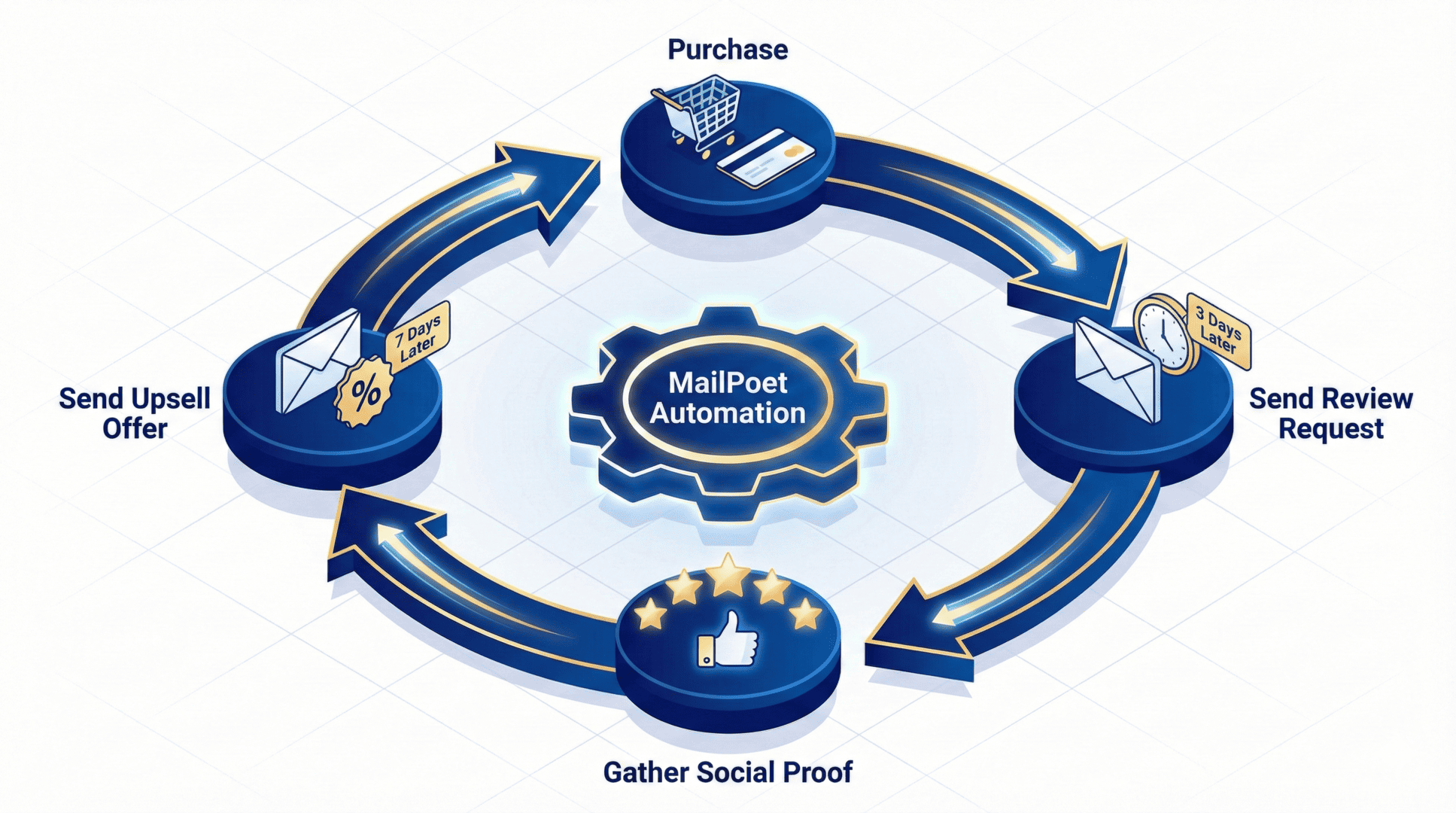
This is where you win. Because you own the store, you own the email list.
Use MailPoet to create an automation sequence.
The customer buys a product.
Wait 3 days.
Send an email asking for a review (social proof).
Wait 7 days.
Send an email offering a discount on WooCommerce Memberships.
There’s so much more you can do, but this guide is not about email automation, so I’ll move on, but stay tuned for more content about it.
Analytics
Stop guessing. Use WooCommerce Reports and Google Analytics to track your sales.
Count partial downloads in your logs using Download Monitor.
If you see many partial downloads, your server might be too slow, or the file size is too big for your customer’s connection.
This is a vital user experience metric that you should pay attention to and optimize.
Chapter 7: Comparison – Your Store vs. The Marketplaces
To drive the point home, let’s look at the math of selling on your own site versus a platform like Creative Market.
| Feature | Your WooCommerce Store | Creative Marketplaces |
| Fees | ~2.9% + 30¢ (Depends on Payment Gateways) | 30% – 50% Commission |
| Customer Data | You own the emails | Hidden from you |
| Payouts | Daily / Weekly | Monthly / Net-30 |
| Branding | Your Brand Identity | Their Brand |
| Control | Total (Price, Terms, Refund Policy) | None (They set the rules) |
| Competition | Zero (It’s your site) | High (Displayed next to you) |
| Recurring Rev | Yes (WooCommerce Memberships) | No / Limited |
The difference is clear.
Creative Market or similar platforms are great places to find customers, but terrible to keep them for the long-run.
Use marketplaces to get discovered, but drive everyone back to your own store for the long term.
Chapter 8: For The Tech-Savvy: Developer Resources
If you’re not tech-savvy or a developer, ignore this section.
But if you want to customize your store further, WooCommerce is open-source, giving you infinite flexibility (if you’re using a self-hosted site).
Custom functions plugin: You can use a plugin like Code Snippets to add custom PHP functions to your store without breaking your theme.
Developer Docs: For deep dives into the API or custom endpoints, check the WooCommerce Developer Documentation.
Woo Agency Partner: If you get stuck or want to build a complex License Keys system, you can hire a vetted agency to handle the heavy lifting.
You also have access to powerful infrastructure tools:
Content Delivery Networks (CDN): Essential for speeding up the delivery of media files globally.
Download Monitor: A plugin that gives you granular tracking on who is clicking your links and from where.
Final Verdict: Build Your Asset
2026 is the year to stop trading hours for dollars.
If you want to sell digital products with WooCommerce, the barrier to entry has never been lower.
You have the tools: from WooPayments for easy transactions to WooCommerce Memberships for recurring revenue.
Don’t let your hard work rot on a hard drive.
Don’t let Creative Market or any other platforms take 40% of your money.
Don’t let fear of “tech” stop you.
Digital products, virtual products, and downloadable products are the currency of the future.
Build the store once. Optimize the landing page once.
Then, let the system work for you.