Disclosure: This website uses affiliate links; I may earn commissions at no extra cost to you. Learn more.
Before we jump into this ultimate WordPress Security Guide for 2026, I want to ask you a terrifying question.
If your web property disappeared right now, completely vanished due to a hacker, a botched plugin update, or a catastrophic server failure, how much money would you lose?
For most creators and business owners, the answer is “everything.“
We spend years building content, optimizing SEO, and nurturing our communities, yet we often overlook the very foundation that holds it all together.
In 2026, the digital threat landscape has shifted.
We are no longer just dealing with bored teenagers in basements. We are facing AI-driven botnets and automated scripts that scan millions of websites for security vulnerabilities 24/7.
I have developed a personal system for dealing with this.
I call it the “Sleep Well Protocol.”
I know, it sounds a bit corny. I say it mostly for the fun of it, to take the edge off a scary topic.
But fundamentally, it is an in-depth defence strategy that ensures no matter what happens, even if I face a security breach at 3:00 AM, I can handle it without panic.
This guide is not a quick checklist. It is a comprehensive blueprint on hardening your WordPress core, understanding the threats (from SQL injections to DDoS attacks), and implementing a fail-safe recovery system.
If you are serious about protecting your user accounts and your revenue, grab a coffee. We have work to do.
Chapter 1: The 2026 Threat Landscape
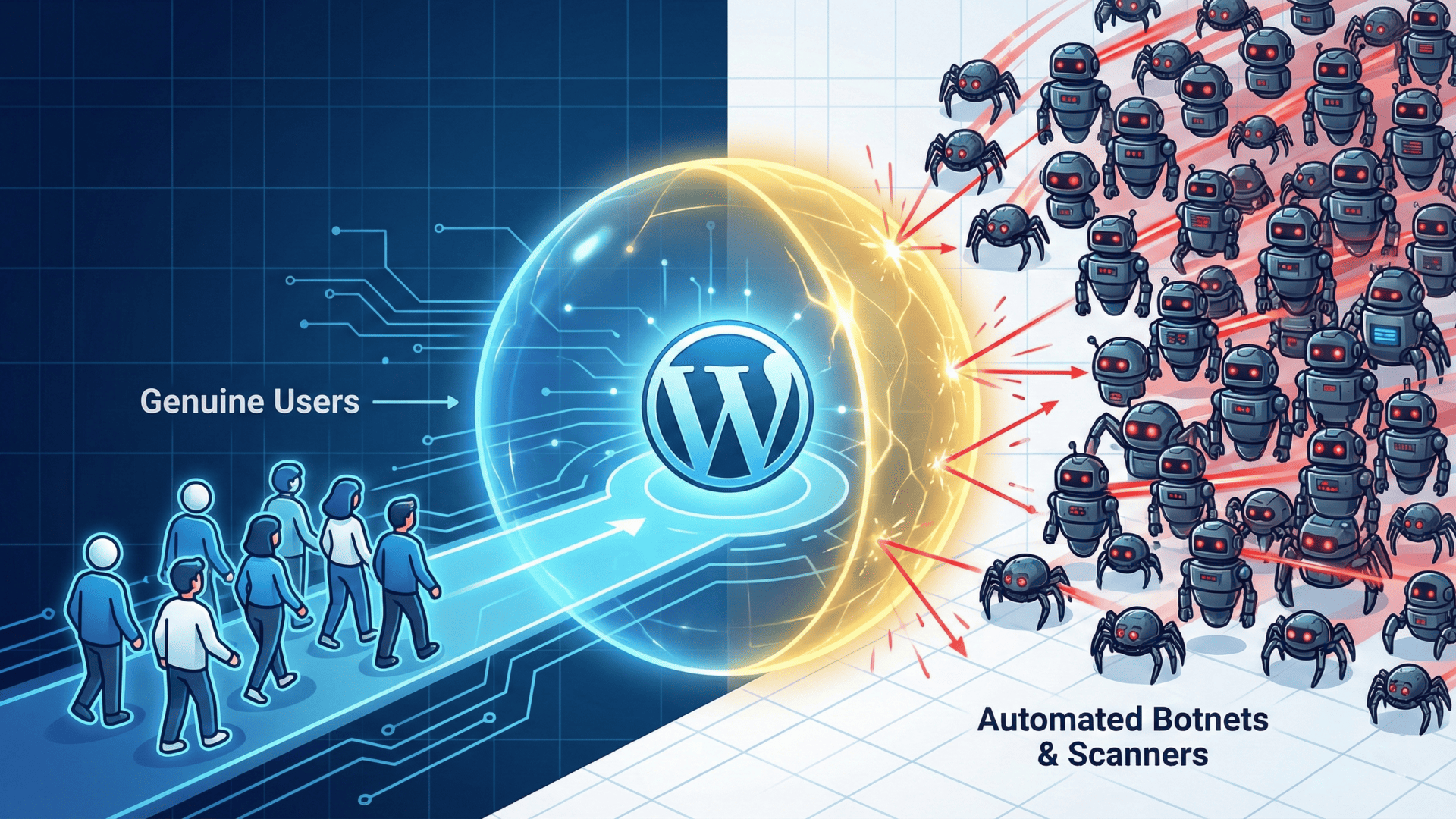
Before we can defend our fortress, we must understand the siege engines outside our walls.
Why is WordPress security in 2026 such a big deal?
The Target on Your Back
WordPress powers over 43.2% of the web, and because it is the most popular Content Management System (CMS), it is the biggest target.
Hackers know that if they find an exploit in WordPress or a popular theme/plugin, they can potentially compromise millions of sites instantly.
It doesn’t matter if you run a small blog or an enterprise eCommerce store; automated bots or brute force attacks do not discriminate based on size.
They look for specific security vulnerabilities and exploit them.
Common Vectors of Attack
To build a proper defense, you need to know what you are fighting. Here are the technical terms you need to know:
Brute Force Attacks
This is the most common and primitive method.
Attackers use automated scripts to guess your username and password combination millions of times.
They target the wp-login.php file, flooding it with login attempts. If you have a weak password and no protection, they will get in.
SQL Injections (SQLi)
This is a sophisticated attack where a hacker inserts malicious code into your website’s input fields (like a contact form or search bar).
This code tricks your database into revealing sensitive data, such as the user list or admin account credentials.
Cross-Site Scripting (XSS)
XSS attacks involve injecting malicious scripts into trusted websites.
The attacker aims to execute scripts in the browser of an unsuspecting user, potentially stealing cookies, session tokens, or other sensitive information.
This often leads to Account Takeover or Privilege Escalation.
DDoS Attacks (Distributed Denial of Service)
A DDoS attack doesn’t necessarily try to steal data; it tries to break the server.
By flooding your site with traffic from thousands of infected computers (botnets), the attacker exhausts your server’s resources (CPU, RAM, and PHP Workers), causing your site to crash or go offline.
I’ve been personally targeted with this once, and it’s not pretty when it happens. I had to use stricter security rules temprorily that also annoyed genuine visitors.
Cross-Site Request Forgery (CSRF)
This attack tricks a trusted user into executing unwanted actions.
For example, a hacker might trick an administrator into clicking a link that secretly changes their password or deletes a post without their knowledge.
Chapter 2: Hardening the WordPress Core
The first layer of the Sleep Well Protocol is ensuring the house itself is built on solid ground.
The Importance of the WordPress Version
Every time a security patch is released, the WordPress Security Team publishes exactly what they fixed.
This creates a race condition.
Hackers read these release notes (called Information Disclosure) and immediately reverse-engineer exploits for sites that haven’t updated yet.
Running an outdated WordPress version is like leaving your front door wide open. You must enable auto-updates for minor WordPress releases at a minimum.
PHP Workers and Environment
Your WordPress hosting environment plays a massive role.
Ensure your host is running a supported version of PHP (currently 8.2 or higher). Older PHP versions stop receiving security updates.
Your hosting provider might switch this for you automatically, but I wouldn’t wait for them to take action on your behalf and proactively try the newer, fully compatible PHP versions to avoid any security issues.
Additionally, premium hosting often includes Object Cache Pro or similar server-side caching mechanisms.
While primarily for performance, these reduce the load on your database during DDoS mitigation scenarios, keeping your site online longer under pressure.
SSL Certificates (HTTPS)

In 2026 and beyond, an SSL Certificate is non-negotiable.
It encrypts the data between your user’s browser and your server (HTTPS SSL).
Without it, data like credit card numbers or WordPress login credentials are sent in plain text, making them easy to intercept via “Man-in-the-Middle” attacks.
Most WordPress hosting providers offer free Let’s Encrypt SSLs, but make sure yours is active.
Chapter 3: Access Control and User Roles
Most hacks don’t happen because of sophisticated code; they happen because of weak passwords and poor user management.
The “Admin” Problem
Never use “admin” as your username.
It is the first thing brute-force attacks guess.
Create a new administrator account with a unique name and delete the default “admin” user.
Implementing Two-Factor Authentication (2FA)

This is the single most effective security measure you can take.
Two-factor authentication (also known as multi-factor authentication) requires a second form of verification, usually a code on your phone, in addition to your password.
Even if a hacker buys your password on the dark web after a third-party data breach, they cannot log in without your physical device.
I recommend using Jetpack Security to handle this.
It integrates 2FA directly into the WordPress login screen, allowing you to use the WordPress mobile app or Google Authenticator.
Adhering to the Principle of Least Privilege
Be strict with user roles.
Does your guest writer need “Administrator” access? No. Give them “Contributor.”
Does your SEO agency need full control? Give them “Editor.”
Privilege Escalation is a common attack vector where a hacker compromises a low-level account and tries to grant themselves admin rights. Don’t make it easy for them.
Chapter 4: The Firewall (WAF) and Prevention
Now we move from passive defense to active defense.
You need a Web Application Firewall (WAF); every website must have it.
What is a WAF?
A Website Firewall sits between your website and the rest of the internet.
It inspects incoming traffic before it reaches your server.
Think of it as airport security.
It checks every passenger (data packet).
If a passenger looks suspicious (e.g., matches the signature of a known SQL injection or comes from a blacklisted IP), the WAF blocks them instantly.
It’s a non-negotiable for me to build my sleep well protocol.
Jetpack Scan and Protect
I use Jetpack Scan and its associated WAF features for this.
It provides reputation-based threat protection, meaning it leverages data from millions of other WordPress sites.
If an IP address attacks a site in London, Jetpack adds it to a global blocklist.
When that same IP tries to attack your site in New York five minutes later, it is already blocked.
This enterprise-level security is accessible even to small creators to enhance the overall WordPress security.
Limit Login Attempts
To stop brute force attacks, you must limit how many times someone can guess a password.
The Limit Login Attempts feature (often built into security plugins) will temporarily ban an IP address after 3 or 5 failed tries.
This makes brute-forcing mathematically impossible for the attacker. Highly recommended!
Chapter 5: Malware Scans and Monitoring
Despite your best efforts, intruders might sneak in.
This is why you need constant surveillance.
Automated Malware Scans
You cannot manually check thousands of WordPress files for malicious code. You need a security plugin that runs daily automated scans.
Jetpack Scan checks your WordPress core, themes, and plugins against a massive database of known malware signatures.
If it finds a “backdoor” or a malicious script, it alerts you immediately via email and often offers a “one-click fix” to repair the file.
The Activity Log (Your Black Box)

When a security breach occurs, the first question is always: “What happened?”
Did a plugin update break the site?
Did a user change a file?
The Activity Log in those situations is your flight recorder.
It tracks every action:
“User X logged in from IP Y.”
“Plugin Z was updated.”
“File A was modified.”
This transparency is vital for customer support if you run an agency, and critical for forensics if you are hacked.
It helps you identify compromised admin accounts instantly.
Chapter 6: The “Sleep Well” Safety Net: VaultPress Backup
This is the most critical part of the protocol.
If everything else fails, if the WAF is bypassed, if the firewall protection crumbles, if you get the WordPress white screen of death, your backup is your only lifeline.
Why “Host Backups” Are Not Enough
Do not rely solely on your hosting industry provider’s backups.
Single Point of Failure: Often, host backups are stored on the same server as your live site. If the server corrupts, you lose both.
Not Real-Time: Most hosts back up daily. If you run a WooCommerce store (see my guide on Selling Digital Products), losing 24 hours of data means losing real money.
The Power of Real-Time Backups
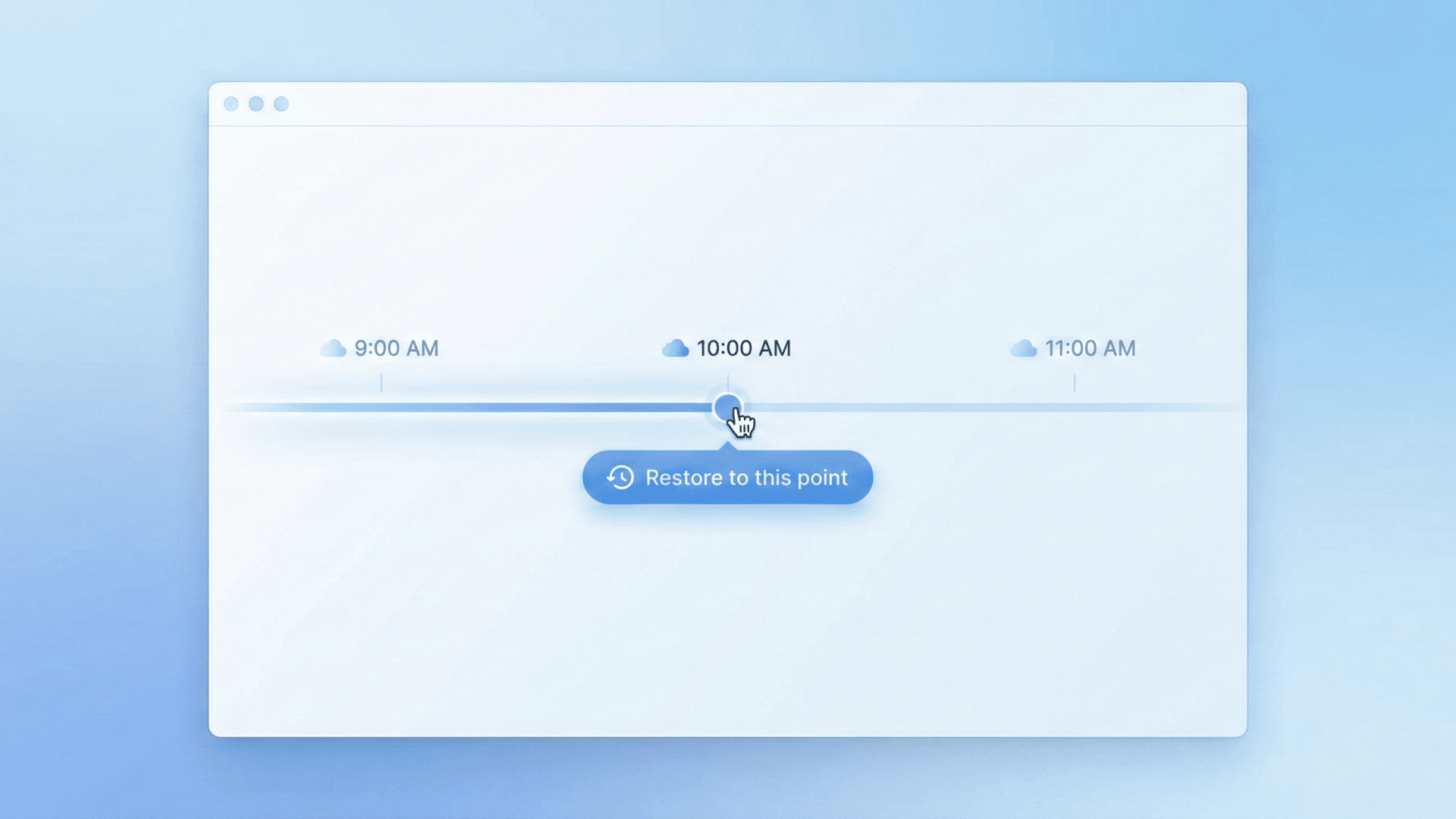
VaultPress Backup (part of Jetpack) offers real-time website backups.
Every time you make a change, publish a post, update a plugin, or get a new comment, it is saved instantly to an off-site cloud.
The One-Click Backup Restore
The true value of a backup system is not in the saving; it’s in the restoring.
Have you ever tried to restore a database manually using PHPMyAdmin?
It is terrifying. I know because I’ve done it before.
With Jetpack, you load the control panel, scroll through a timeline, find the point before the hack occurred, and click “Restore.”
The system handles the database security and file rewriting automatically.
Chapter 7: Managing WordPress Plugins and Themes
WordPress plugins are the lifeblood of the ecosystem, but they are also the biggest security risk.
We often use a lot of WordPress plugins from various developers to achieve the functionality that we want on our site, and it opens up a lot more doors that can be breached.
While I would recommend lowering the number of plugins that you use on your site, it is often a necessity, and in that case, make sure to choose the best ones from reputable developers.
The Supply Chain Attack
Sometimes, a trusted plugin is sold to a new developer who inserts malicious code.
Or, a developer abandons a plugin, and security vulnerabilities are discovered but never patched.
Best Practices for Plugin Management
Delete, Don’t Deactivate: If you aren’t using a plugin, delete it. Inactive code can still be exploited.
Check the “Last Updated” Date: If a plugin hasn’t been updated in 2 years, replace it. It likely has unpatched security concerns.
Use Reputable Sources: Only download from the official WordPress repository or trusted premium marketplaces like WooCommerce.com. Avoid “Nulled” (pirated) premium plugins; they almost always contain malware.
Auto-Updates: Enable auto-updates for trusted plugins to ensure you get every security patch instantly.
Chapter 8: Advanced Hardening (For The Paranoid)
If you want to go beyond the basics, here are some advanced measures.
IP Allowlisting and Network Segmentation
If you have a static IP address, you can configure your server to only allow access to the wp-admin folder from your specific IP.
This makes it impossible for anyone else to access the login page, effectively neutralizing remote attacks.
However, please note that most of us don’t have access to a static IP, and thus, it may not be the best thing to do, and will only put roadblocks to your work.
Disabling File Editing
By default, WordPress allows you to edit PHP files via the dashboard.
This is a security risk.
If a hacker gets admin access, they can inject code directly.
You can disable this by adding a line of code to your wp-config.php file: define( 'DISALLOW_FILE_EDIT', true );
Content Delivery Network (CDN)
Using a Content Delivery Network like Jetpack CDN doesn’t just improve PageSpeed scores; it adds a layer of security.
The CDN acts as a buffer, absorbing traffic spikes during DDoS attacks and hiding your origin server’s IP address.
Chapter 9: The Architecture of Defense: Local vs. Cloud
You might be asking, “Do I really need a dedicated suite like Jetpack? Can’t I just use a simple free scanner?”
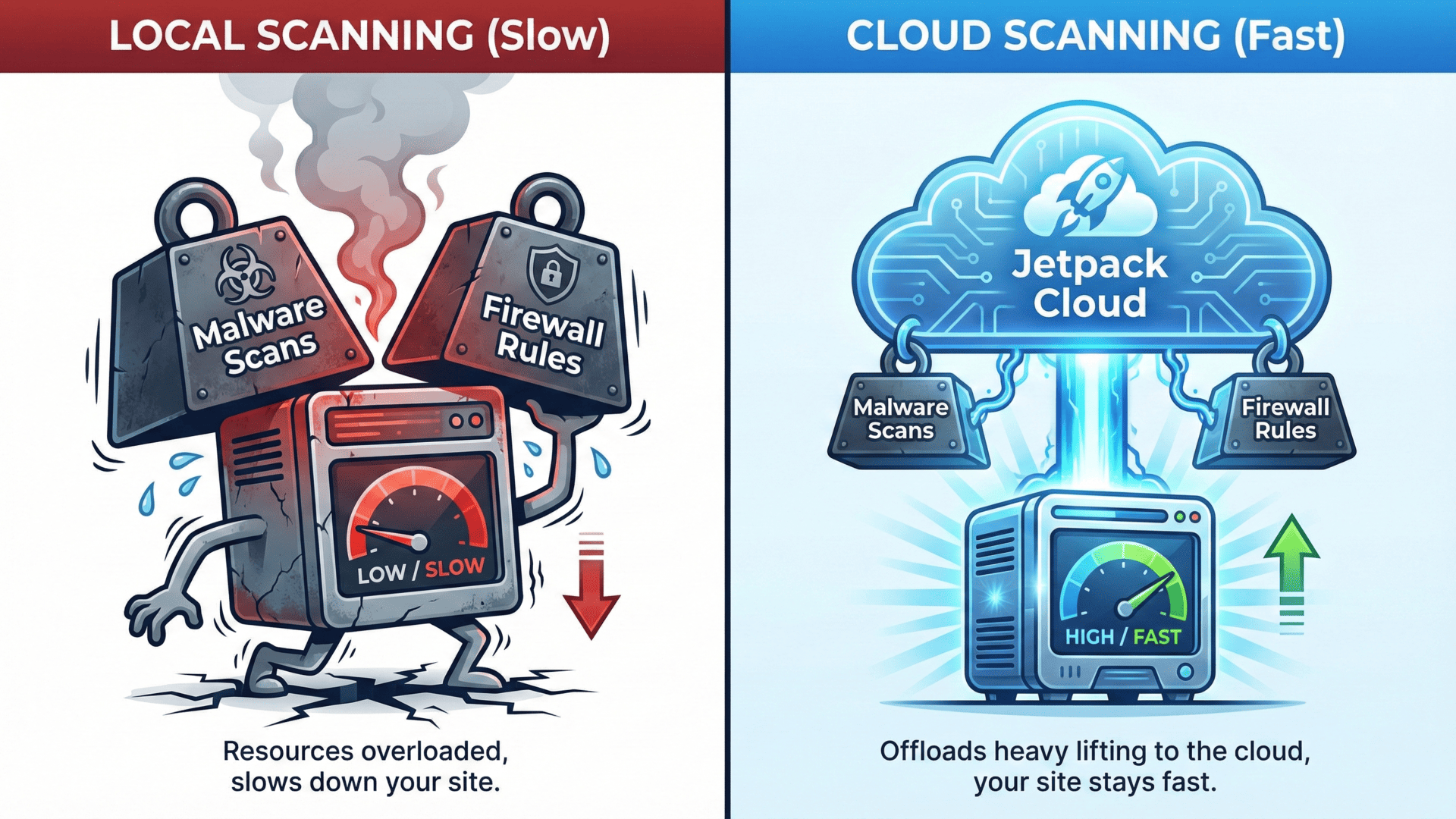
There are many WordPress security plugins available, but they generally fall into two categories: Local and Cloud-based.
It is vital to understand the difference.
Local Security Plugins (The Hidden Cost)
Many popular free plugins run entirely on your web server.
Every time they scan for malware or block a bot, they use your server resources (CPU and RAM).
During a heavy attack, the WordPress security plugin itself can become the problem, consuming so much power that it crashes your site just trying to log the bad actors.
Cloud-Based Security (The Jetpack Advantage)
This is why I prefer the “Sleep Well Protocol” using Jetpack.
It offloads the heavy lifting, backups, scanning, and firewall rules to Automattic’s massive server network.
The threats are stopped in the cloud before they even hit your hosting account.
This architecture preserves your site speed and ensures that even if your site goes offline, your security dashboard (and backups) remain accessible because they live on an external infrastructure.
Chapter 10: Performance vs. Security
There is often a tension between locking down a site and keeping it fast.
Some security measures, like heavy obfuscation or aggressive scanning, can slow down your Time to First Byte (TTFB).
The Jetpack Advantage
Because Jetpack’s scanning and backups happen on their cloud servers, not yours, there is zero load on your host.
This ensures your PageSpeed scores remain green, which is vital for search engine optimization (SEO).
Conversely, local scanning plugins use your server’s CPU to hunt for viruses, often causing sluggishness during the scan.
Chapter 11: Implementation Guide (The Checklist)
Ready to implement the Sleep Well Protocol? Here is your checklist.
Backup First: Before installing any security plugin, run a manual backup.
Install Jetpack: Connect it to your site.
Enable Downtime Monitoring: Get alerted instantly if your site goes down.
Configure 2FA: Force all admin accounts to use it.
Scan: Run your first Jetpack Scan to ensure you are starting clean.
Audit: Review your user list. Delete anyone who shouldn’t be there.
Check SSL: Verify your HTTPS SSL padlock is active or the SSL Certificate has been installed.
Conclusion: Is Peace of Mind Worth The Cost?
I have been in the hosting industry long enough to see the devastation of a hack.
I have seen business owners crying because they lost 5 years of blog posts.
I have seen eCommerce stores lose thousands of dollars during Black Friday because of a DDoS attack.
WordPress security is not a “nice to have.” It is an insurance policy.
Yes, premium security tools have a cost.
You might look at the pricing and think, “I can save this money.”
But check for academic pricing or bundles if you are eligible.
Look at the premium features and ask yourself: “Is $10 or $20 a month worth knowing I will never lose my business?”
For me, the answer is yes. I want to sleep at night. I don’t want to worry about authorization bypass exploits or XSS attacks.
I want to know that my support team, my security team (even if that’s just me), and my automated tools have it handled.
That is the Sleep Well Protocol.
It might be a personal choice. It might sound corny.
But when the digital storm hits, you’ll be the one standing safe and dry.