Disclosure: This website uses affiliate links; I may earn commissions at no extra cost to you. Learn more.

I have built dozens of client sites over the last five years, and I used to give the exact same advice every time: stay away from hosted platforms if you want real control.
For years, the freelance community believed that using WordPress.com meant you were stuck in a locked-down environment, especially in their starting plans.
We thought you had to buy unmanaged hosting, figure out your own server architecture, and pray your site did not crash just to install a custom tool.
That assumption is officially dead.
WordPress.com has changed the rules and they opened the gates.
Now in 2026, every single paid WordPress.com plan gives you direct access to the massive repository of over 50,000 open-source tools and WordPress Plugins.
You no longer need to upgrade to the highest, most expensive pricing plans just to get the basic functionality that you’d otherwise get from a self-managed hosting.
You get the stability of managed hosting with the absolute freedom of a self-hosted setup.
I recently audited my own freelance workflow to see how this pricing shift changes things. I realized I could cancel several expensive third-party software subscriptions and run everything natively.
Yes, WordPress.com already includes solid built-in tools like Jetpack to handle the basics. But the beauty of this update is that you aren’t forced to use them.
If your client demands or your agency is already fiercely loyal to specialized tools like WPForms or Rank Math, you can finally bring your exact tech stack over to their managed infrastructure.
While I personally prefer working with self-hosted platforms, for a lot of clients WordPress.com makes a lot of sense now and a lot of them actually prefer it. So it’s important and you should definitely take a look at it.
If you are trying to build a serious service business, here is my unfiltered breakdown of the best WordPress.com plugins available right now, and exactly how they replace the expensive external tools draining your budget.
The Death of the Locked-Down Content Management System

Before I talk about the specific tools, we need to talk about the overhead first.
Freelancers bleed money through monthly SaaS subscriptions.
I was wasting $29 a month on an invoicing tool. I spent another $45 on a standalone booking calendar. I paid $50 a year for a specialized lead generation form.
When you unlock the native repository on your WordPress.com website along with a custom domain name, you bring all those features in-house.
You control the interface, you own your data, and Automattic’s server infrastructure keeps everything running fast.
This is the exact stack I install the moment I spin up a new site on WordPress.com.
1. The SEO Stack: Rank Math SEO & Site Kit by Google

The best SEO setup for a native WordPress.com site is Rank Math for on-page optimization, paired with Site Kit by Google for analytics integration or Rank Math Pro.
Relying entirely on social media for client acquisition is exhausting.
You are completely at the mercy of algorithms.
To get high-paying, consistent leads, you need to own your content marketing strategy and rank for local or niche search terms.
While the core WordPress architecture is already friendly to search engines, you need dedicated tools to actively push your pages up the Google Rankings.
Best Option: Use WPForms for conditional logic filtering and Thrive Automator to send that data to your CRM automatically.
Granular On-Page Control

The debate between AIOSEO and Rank Math SEO is legendary among developers, but right now, I prefer Rank Math for freelancers.
It acts like an automated editor.
When I write a case study about a recent project, the plugin sits in the sidebar and scores my content in real-time.
It tells me if my sentences are too long. It flags if my focus keyword is missing from the subheadings. It warns me if I forgot to optimize my images.
If you prefer the classic interface, All in One SEO and other better Yoast SEO alternatives are just a click away.
You install them, run the setup wizard, and immediately gain control over your metadata.
You do not need to be a developer to understand how to write a good site description anymore.
Connecting the Analytics

You cannot improve what you do not measure.
I used to hate manually pasting tracking scripts into header files.
Now, I just install Site Kit by Google.
It natively connects my WordPress.com dashboard to Google Analytics and Google Search Console without touching a single line of code.
If you want an even simpler view of your traffic directly inside your admin panel, MonsterInsights strips away the complex charts and just shows you exactly where your clients are coming from if you’d like.
2. The Intake Engine: WPForms & Thrive Automator

A standard “Name and Email” contact box is useless.
It invites spam and gives you zero context about a prospect’s budget.
You end up wasting hours on discovery calls with people who cannot afford your rates.
You need a dynamic intake system that filters bad leads before they ever reach your inbox.
Conditional Logic Forms

I always install a heavy-duty form builder.
WPForms and Formidable Forms are excellent for this use case and many advanced needs.
The real power is in their conditional logic feature.
I build forms that change based on what the user clicks.
If a prospect selects “Website Redesign” from a dropdown, the form expands to ask about their current host.
If they select a budget under my minimum threshold, the form politely directs them to a free resource instead of letting them book a call.
Automating the Handoff

Once a good lead submits a form, the administrative work begins
This is where a plugin like Thrive Automator acts as your digital assistant.
You can set up a rule that says: When a user submits the intake form, automatically add them to Jetpack CRM and create a new folder for them in Google Drive or whatever extra tools you use.
You handle the client relationship. The plugins handle the data entry.
And to make sure your forms actually reach your inbox without getting flagged as spam, installing a plugin like WP Mail SMTP ensures your server routing is perfectly authenticated and uses a better method for emails.
3. Performance & Speed: WP Rocket & Jetpack Boost
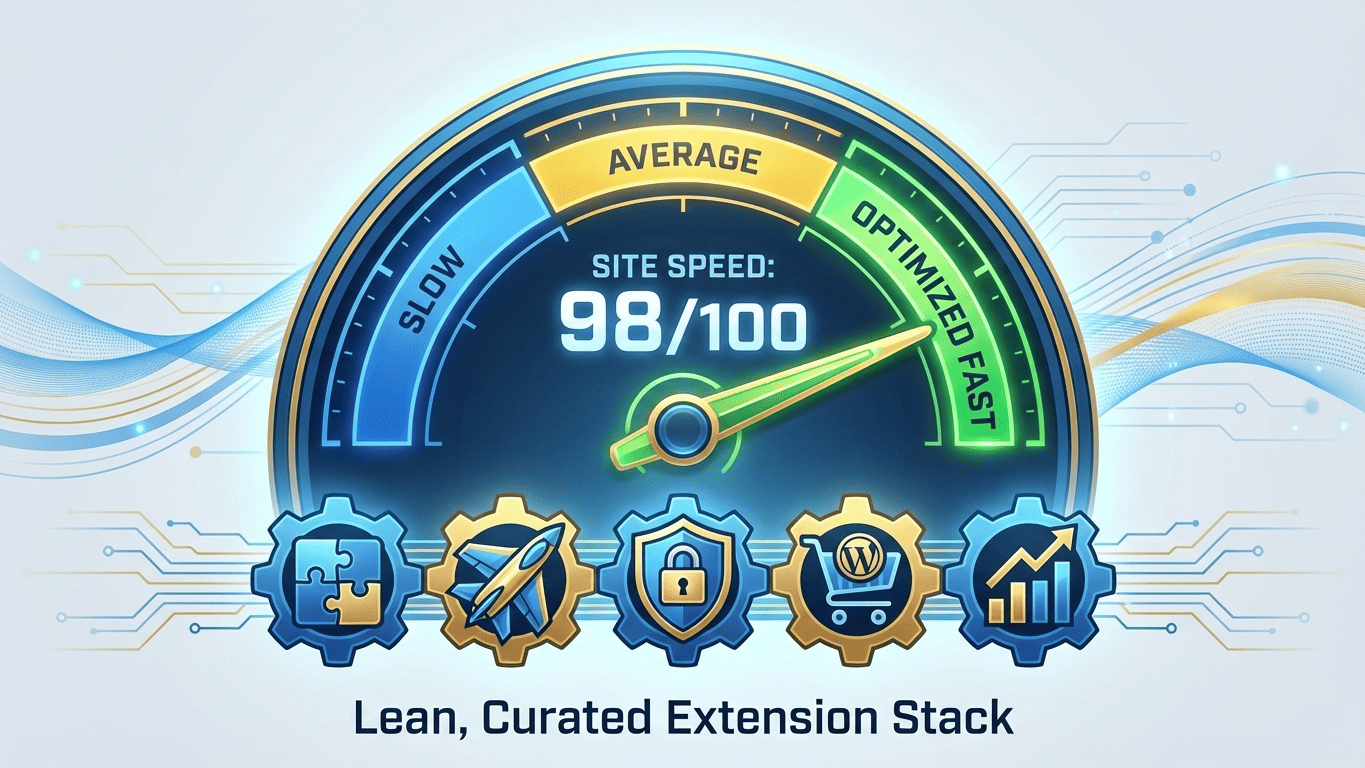
A slow site kills your user experience. If a potential client clicks your portfolio and it takes five seconds to load a heavy image gallery, they will close the tab and hire someone else.
Because WordPress.com manages the server side, you already get excellent baseline speed.
However, to optimize your specific front-end assets, you need caching and performance plugins.
Caching and Minification
There are plenty of free options out there like W3 Total Cache, but I haven’t had the best experience with them.
If you want the absolute best results with zero technical headache, WP Rocket is worth the premium license.
It automatically minifies your code and preloads your pages.
If you want to stick to free tools within the ecosystem, Jetpack Boost is phenomenal.
It offers one-click optimizations for critical CSS and defers non-essential scripts.
Image Optimization
As a freelancer, your portfolio is heavy on visuals.
You must use a Lazy Load feature so that images only render when the user actually scrolls down to them.
This saves massive amounts of bandwidth.
I also run tools that automatically compress images the moment I upload them, ensuring my site building process stays lean. I highly recommend using WP Rocket to fix everything performance related.
4. Security Lockdown: Wordfence Security & Solid Security

The idea of getting hacked terrifies most small business owners.
I have had clients come to me in a panic because a malicious bot injected spam links all over their blog.
The beauty of the paid WordPress.com plans is that Automattic handles the heavy server security, they block DDoS attacks and automatically provisions your SSL certificates.
You do not need to mess with a Really Simple SSL plugin anymore because the platform forces HTTPS by default.
However, you still want application-level protection and now we’ll talk about that.
The Firewall Defense
I always install dedicated Security plugins as a secondary perimeter and I highly recommend you to do the same.
Sucuri and Solid Security (formerly iThemes) are the industry standards. They act as a bouncer at the door of your website.
They actively scan for malware, monitor failed login attempts, and block XSS attacks in real-time.
If someone tries to brute-force guess your admin password, these plugins lock their IP address out completely.
You can also turn on two-factor authentication for your login screen, making it virtually impossible for unauthorized users to access your backend.
Routine Maintenance
Security is also about keeping things clean. I use WP Umbrella or similar tools to monitor uptime.
I run the Health Check & Troubleshooting plugin to isolate conflicts if a new tool acts weird.
And to keep my database clean, I use Akismet to automatically delete junk comments on my blog before I even see them.
5. Visual Design & Blocks: Spectra Pro & Advanced Custom Fields

The era of struggling with clunky Page builders is fading.
The native Gutenberg block editor has become incredibly powerful, but to build highly custom layouts, you need block extension plugins unless you code yourself.
So let’s talk about that now.
Expanding the Native Editor
Instead of installing heavy, bloated visual builders, I use Spectra Pro. These plugins add advanced blocks directly into the native editor.
I can drop in a beautiful pricing table, an interactive timeline, or a sleek portfolio grid without touching a line of CSS.
If I am building a site for a client who needs to manage complex data. Think of a real estate agent needing a template for property listings, I would use Advanced Custom Fields along with them.
It lets me create custom input boxes in the WordPress backend so the client just fills out a form, and the data automatically populates perfectly into the front-end layout.
Themes and Typography
Because the third-party themes are unlocked now, you can install lightweight powerhouses like the Astra or Kadence Theme to get started with a solid and fully ready base.
Pair that with the ability to upload custom Google Fonts, and you have complete control over the visual identity.
To improve the reading experience on long-form content, I always drop in Joli Table Of Contents or LuckyWP Table Of Contents.
It automatically generates a clickable index at the top of my articles, which users love and search engines reward for long articles and ultimate guides.
The Affiliate and Utility Extras
Once the core foundation is built, you can start adding specialized utilities depending on how you monetize your site.
Content Marketing Revenue: If you write software reviews or recommend products, managing affiliate links is a nightmare. I use PrettyLinks or ThirstyAffiliates to turn ugly tracking URLs into clean, branded links.
Legal Compliance: You have to stay compliant with privacy laws. Installing WP Cookie Consent or WP AutoTerms automatically generates your required legal pages and banner popups so you don’t get sued.
Social Proof: I use Smash Balloon to pull my live Instagram feed directly into my footer, keeping my site looking fresh and active without any manual updating.
Site Migrations: If I build a site locally on my laptop and need to push it live to my WordPress.com custom domain, I rely heavily on UpDraft Plus. It packages the entire site into one file and unpacks it perfectly on the live server.
The Reality of the New WordPress.com

We are past the days of testing buggy beta features.
This official release of plugin access on all WordPress.com paid plans completely shifts the website builder market.
You no longer have to compromise.
You get the enterprise infrastructure of Automattic keeping the lights on, and the chaotic, brilliant innovation of the open-source community providing the features.
You do not need to hire a developer to build a client portal or set up an invoicing system.
You just need to know which tools to grab off the shelf.
Log into your dashboard, upgrade to a paid plan, and start installing the tools that will actually grow your business.
The gates are open and it’s waiting for you.